
In PC scenarios, configure mouse and keyboard actions such as Click and Input in each step.
This guide covers Motion and Event actions for Desktop Scenarios.
For Variable, Assertion, and Advanced actions, Stego Web works the same way as Actions Overview.
For common action settings, see Actions Overview.
Motion #
Basic mouse and keyboard actions used in a desktop environment.
Click #
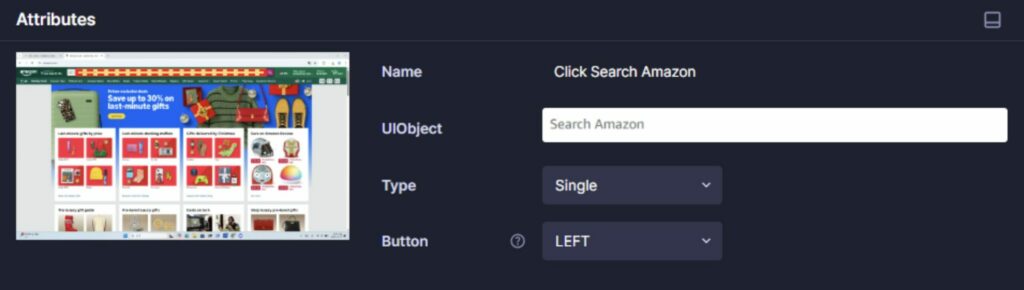
Click a target UIObject.
Attributes
- UIObject: The UIObject to click
- Type: Click type
- Single: Single-click
- Double: Double-click
- Button: Mouse button
- LEFT: Left click
- MIDDLE: Middle click (mouse wheel)
- RIGHT: Right click
- BACK: Back mouse button
- FORWARD: Forward mouse button
Scroll #
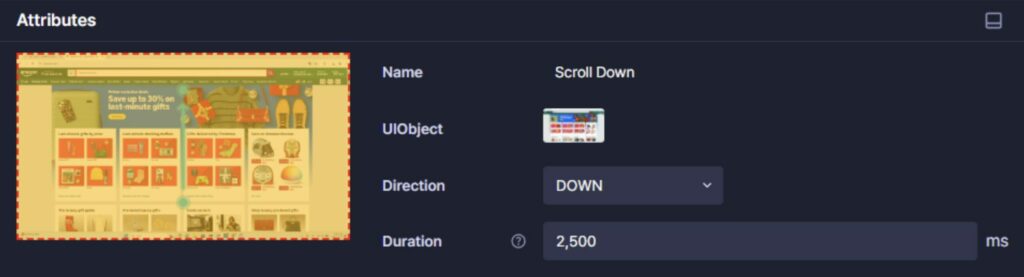
Scroll vertically or horizontally.
If the scroll start area contains a clickable element (like a button or menu), scrolling may not work as expected.
Attributes
- UIObject: The area to scroll
- Direction: Scroll direction (default: DOWN)
Options: DOWN / UP / LEFT / RIGHT / BOTTOM / TOP- DOWN / UP: Standard vertical scroll
- LEFT / RIGHT: Horizontal scroll
- BOTTOM / TOP: Scroll to the end
- Duration: Scroll duration
Default: 2,500 ms (range: 100–5,000 ms)
Scroll To #
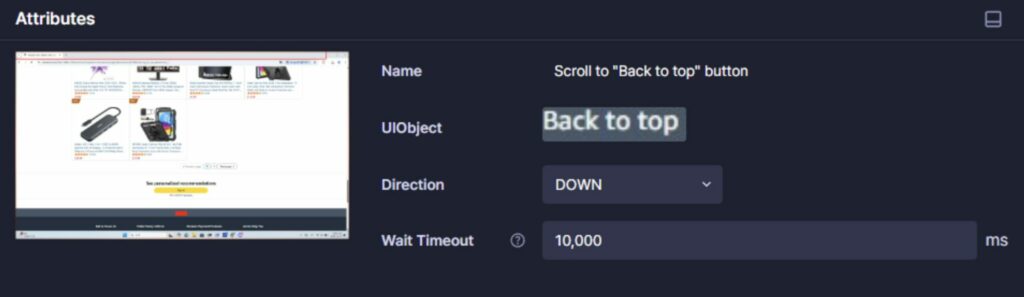
Keep scrolling until the specified UIObject appears on screen.
Attributes
- UIObject: The element used as the stop condition
- Direction: Scroll direction (default: DOWN)
Options: DOWN / UP / LEFT / RIGHT- DOWN / UP: Standard vertical scroll
- LEFT / RIGHT: Horizontal scroll
- Wait Timeout: Max time to keep scrolling
Default: 10,000 ms (range: 5,000–600,000 ms)
Drag #
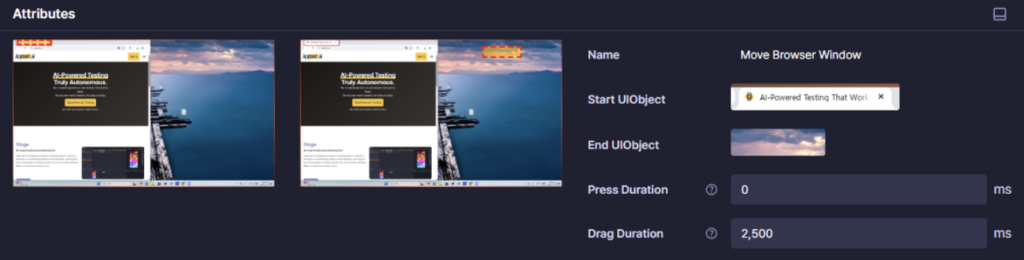
Drag from a start UIObject to an end UIObject.
Attributes
- Start UIObject: Where the drag begins
- End UIObject: Where the drag ends
- Press Duration: How long to press before dragging (Default: 0 ms, Range: 0–5,000 ms)
- Drag Duration: How long the drag takes (Default: 2,500 ms, Range: 500–5,000 ms)
Input #
Type text using the keyboard. Run this action when the keyboard is active.
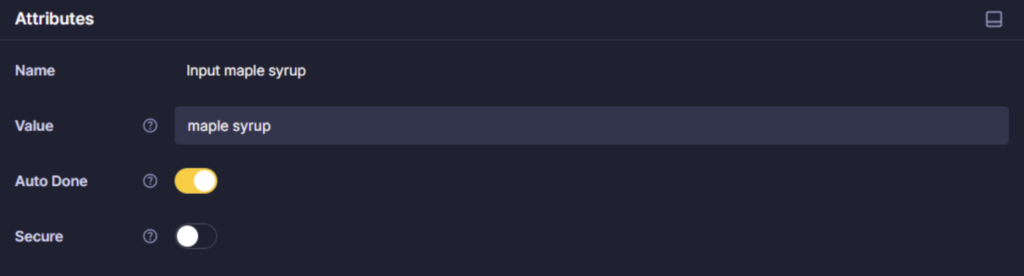
Attributes
- Value: Text to input (Enter directly, or use a User Variable in the form
${key}.) - Auto Done: When enabled, Stego automatically presses the keyboard action button (for example, Done, Search, or Next) after typing.
- Secure: When enabled, Stego uses the Windows on-screen keyboard to enter text.
Hover #
Move the mouse pointer over a specified UIObject.
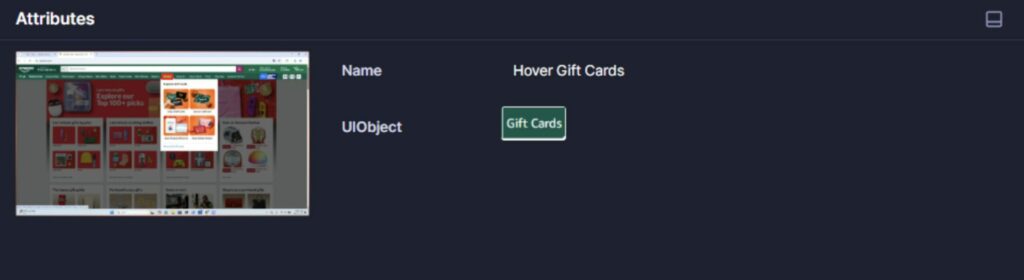
Attributes
- UIObject: The area to hover over
Secure Keyboard #
Enter a password using a secure keyboard. Use this action only when the secure keyboard is active.
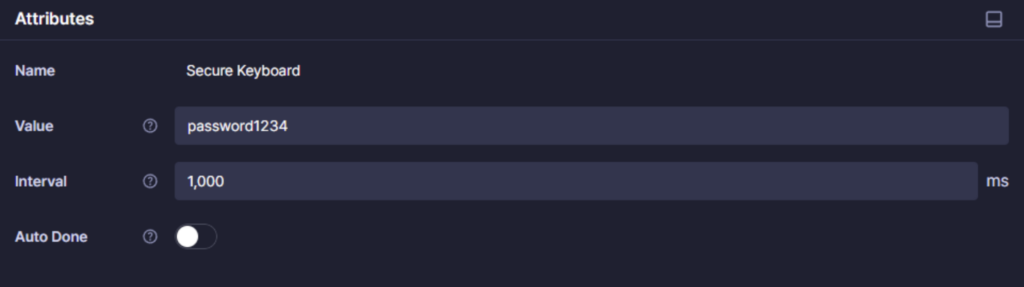
Attributes
- Value: The value to enter on the secure keyboard
- Interval: Time between key presses (Default: 1,000 ms, Range: 500–5,000 ms)
- Auto Done: When enabled, Stego automatically presses the keyboard action button (for example, Done, Search, or Next) after typing.
Event #
Wait #
Pause for a specified amount of time (in milliseconds).
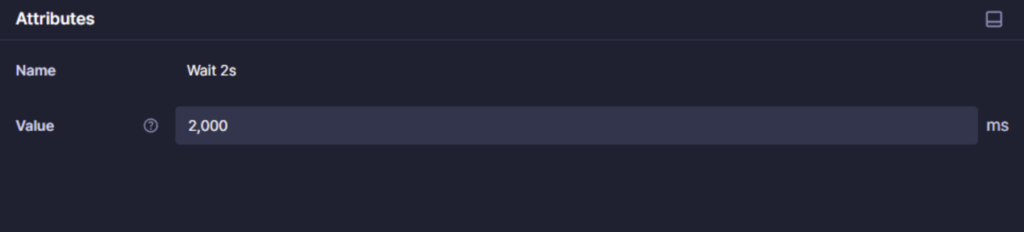
Attributes
- Value: Wait time (Default: 2,000 ms, Range: 500–600,000 ms)
Launch #
Launch an application or open a URL in a browser.
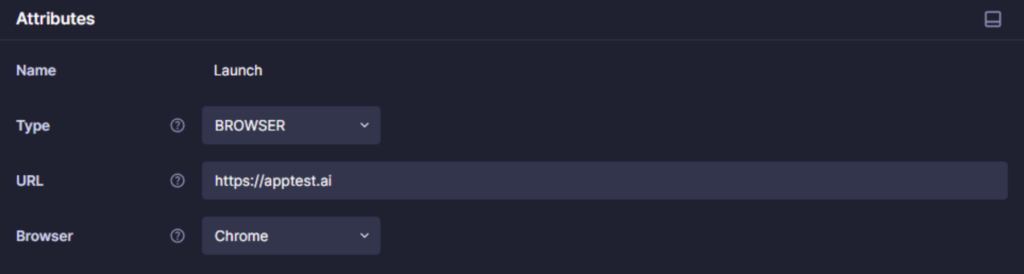
Attributes
- Type: Launch target type
- APP
- App: Path to an
.exefile (e.g.,C:\Program Files\Google\Chrome\Application\chrome.exe)
- App: Path to an
- BROWSER
- URL: Website URL to open
- Browser: Select Chrome or Edge
- APP
Keycode #
Send a key input using Microsoft Virtual-Key Codes.
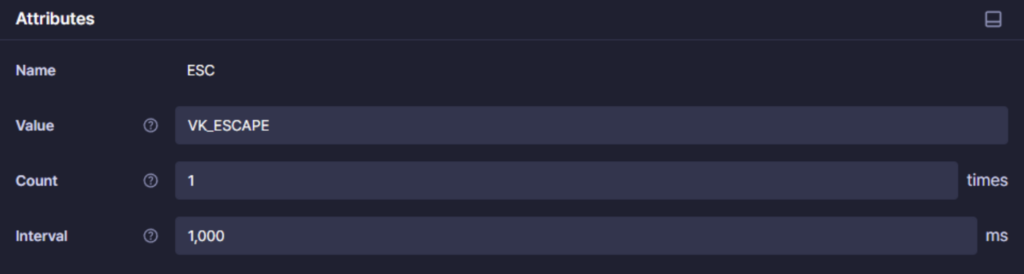
Attributes
- Value: The Virtual-Key code value (same as the Constant value)
- Count: Number of times to send the key (Default: 1, Range: 1–100)
- Interval: Time between key presses (Default: 1,000 ms, Range: 500–5,000 ms)
For the full list, refer to Microsoft Virtual-Key Codes.