
This guide covers the actions available on the Test Result Detail page: rerunning tests, updating metadata, reviewing input data, sharing results, configuring notifications, and deleting results.
Rerunning a test #
Rerun a completed test with the same configuration directly from the detail page.

- Open the Test Result Detail page.
- Click Rerun.
- The test starts with identical settings.
Changing test result status, labels, and notes #
On the Test Result Detail page, click Change next to the field you want to update: Status, Labels, or Memo.
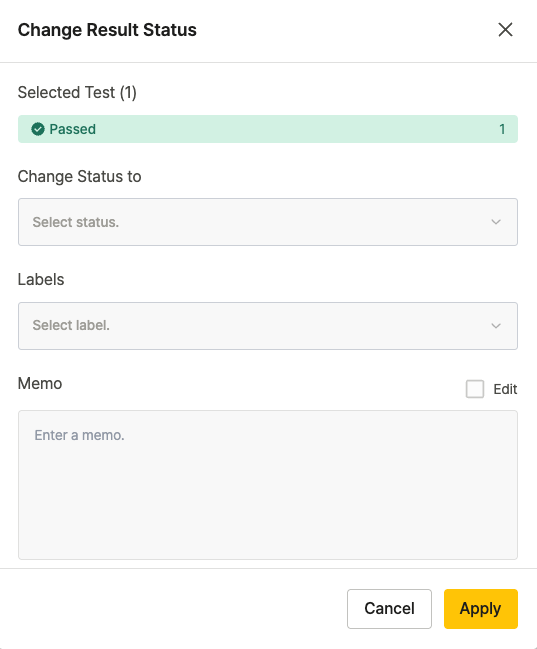
Changing test result status #
Select a new status from the Change Status to dropdown and click Apply.
Adding or updating labels #
Add or modify labels in the Labels field and click Apply. Only predefined labels are available — define custom labels in Team Settings.
Adding a memo #
Add notes in the Memo field and click Apply.
Viewing change history #
The Change Status History section at the bottom of the dialog shows all previous status changes.
Viewing input data #
Click Input Data on the Test Result Detail page to view the credentials, variables, and datasets used during the test run.
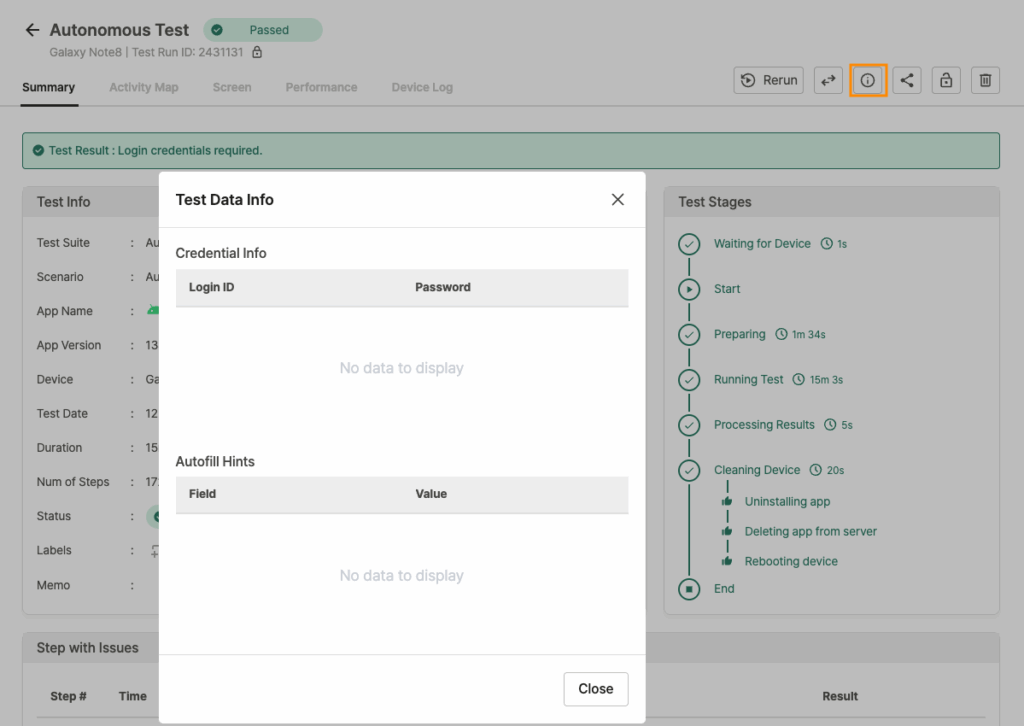
Autonomous test suites #
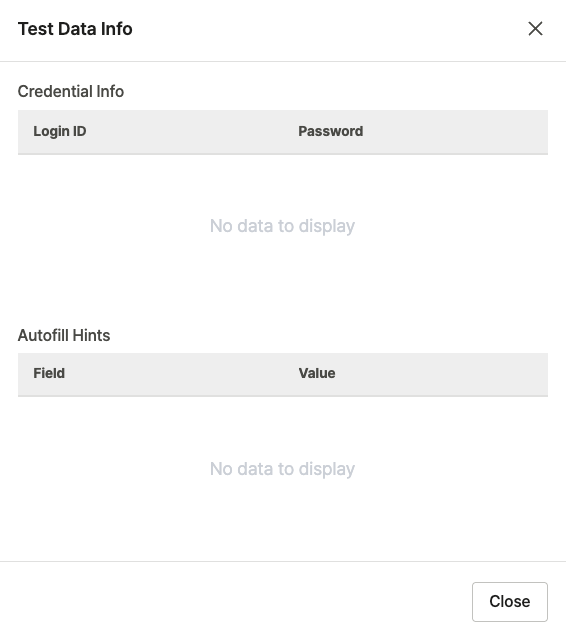
| Field | Description |
|---|---|
| Credential Info | Account information used for login |
| User Variables | User-defined variables applied during the test |
Scenario test suites #
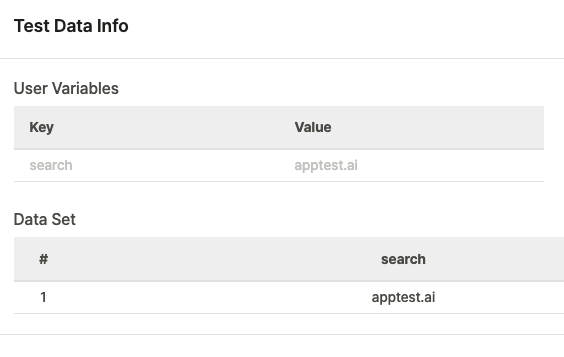
| Field | Description |
|---|---|
| User Variables | User-defined variables applied during the test |
| Data Set | CSV-formatted data rows with # (row number), Key (variable name), and Value (variable value) |
Sharing test results #
Click Share in the top-right corner of the Test Result Detail page.
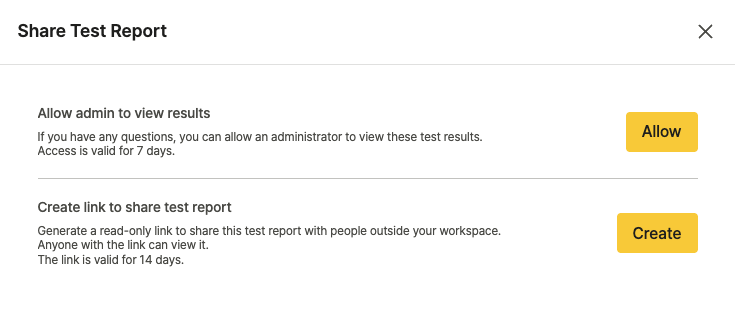
Sharing with an admin #
Send a test-result inquiry directly to an Apptest.ai administrator.
- Click Allow under “Allow admin to view results.”
- Enter the recipient’s email address.
- Write the inquiry message.
- Click Send.
Creating a share link #
Generate a temporary, publicly accessible URL for the test result.

- Click Create under “Create link to share test report.”
- Click the Copy icon next to the generated URL.
- Share the link with anyone who needs access.
Share links expire after 14 days.
Setting up notifications #
Configure automatic notifications so your team receives test results through the channels listed below.
Slack #
Slack notifications are configured per team and deliver results for tests run by that team.
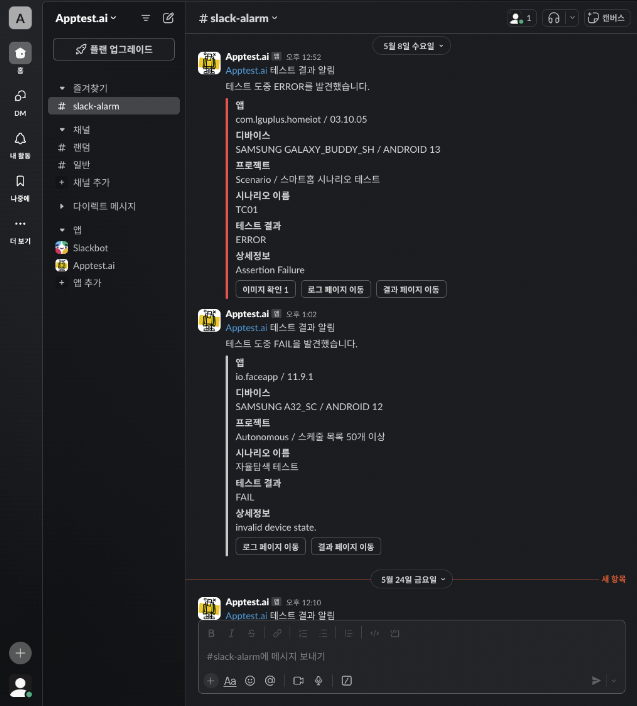
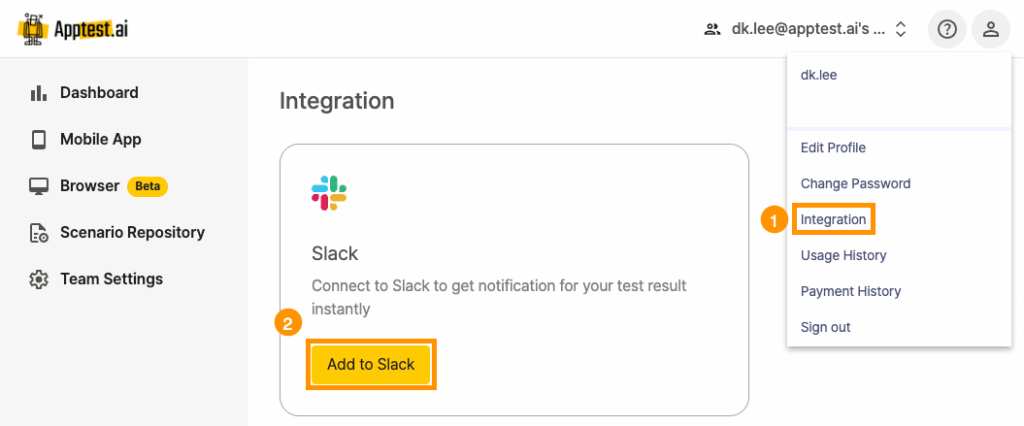
Adding the ApptestAI app to your workspace #
Step 1. Open the profile menu (top-right) and select Integration, then click Add to Slack.
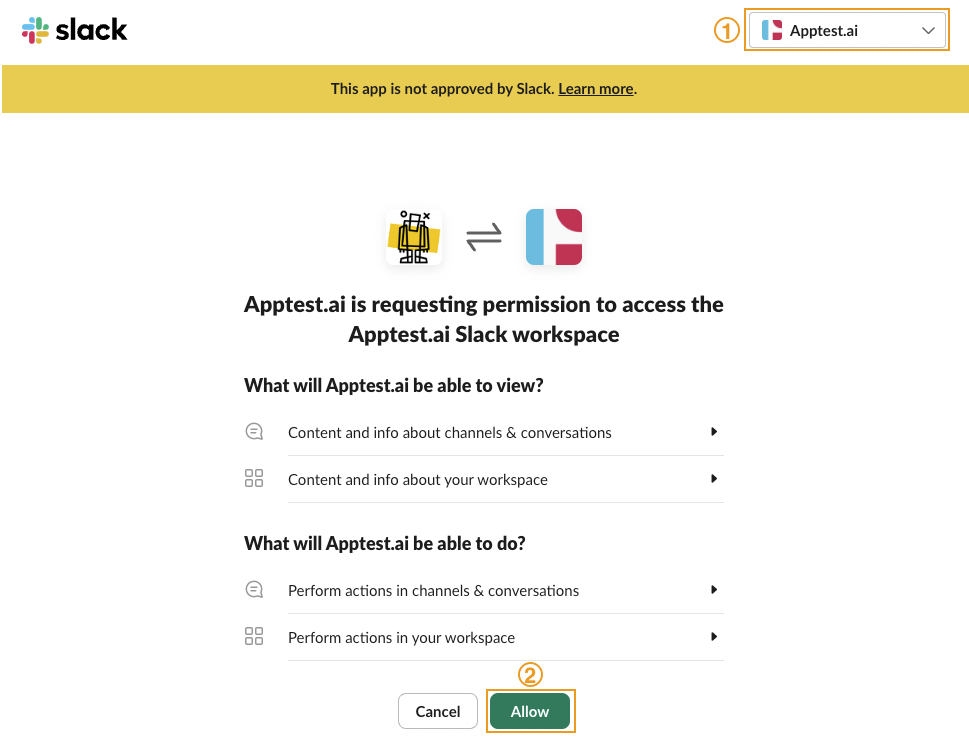
Step 2. Log in with your Slack account, select the target workspace, and click Allow.
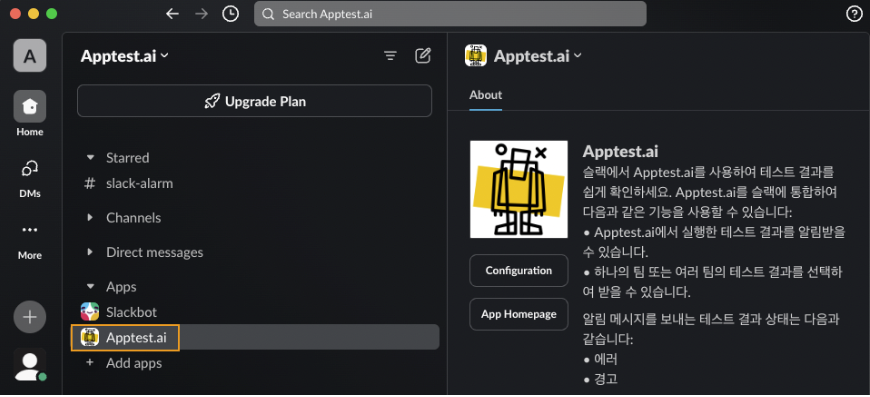
Step 3. Confirm that Apptest.ai appears under your workspace’s Apps.
Adding to a channel #
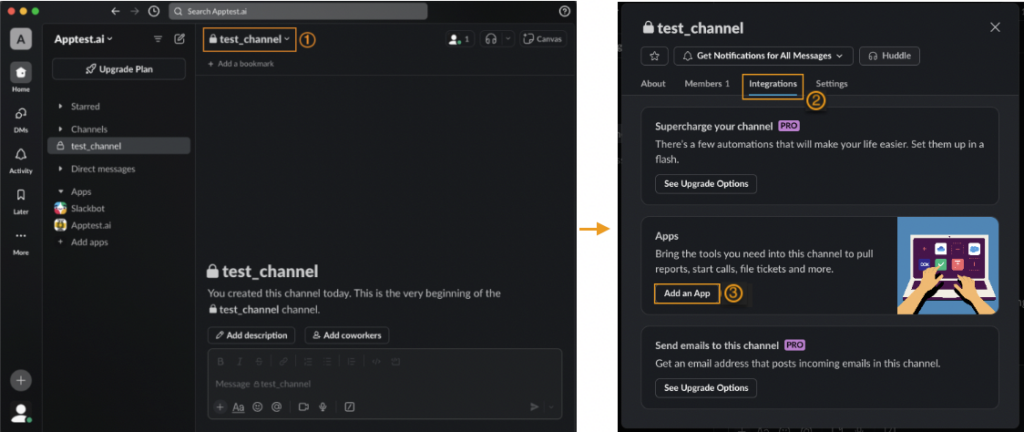
Step 1. Open the target Slack channel, click the channel name dropdown, then go to Integrations > Apps and click Add an App.
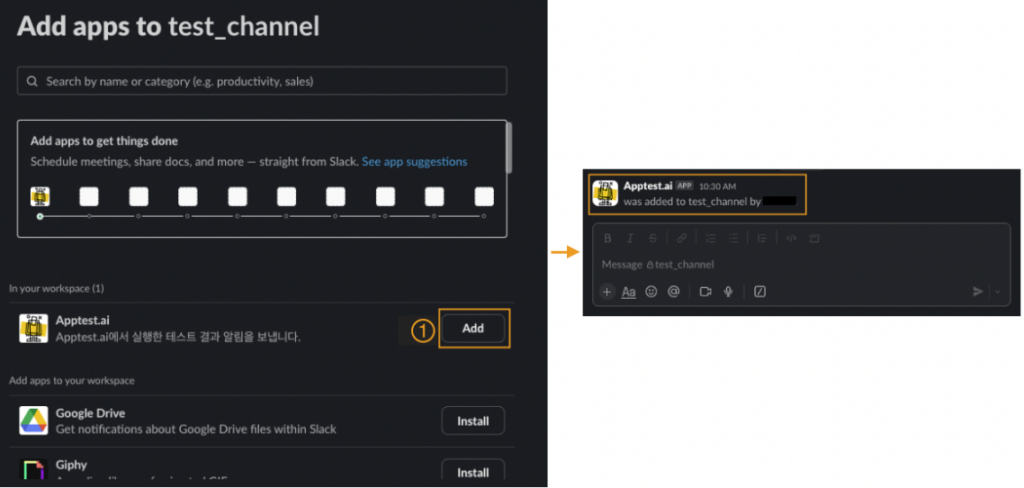
Step 2. Find Apptest.ai and click Add. A confirmation message appears in the channel.
Email #
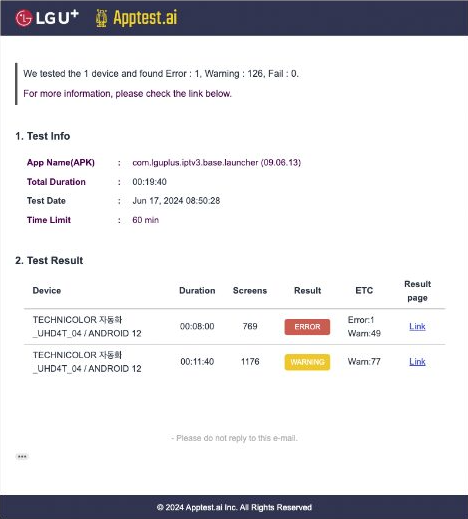
Enable email notifications in Team Settings > Members > Email Notification. See Team Settings for details.
Telegram #
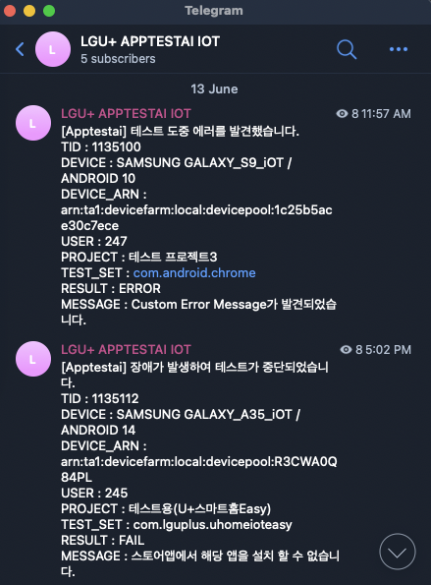
Contact the Apptest.ai team to set up Telegram notifications for your team.
KakaoTalk #
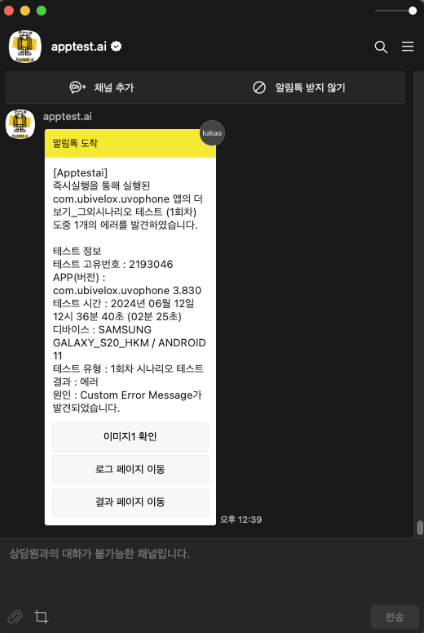
Contact the Apptest.ai team to set up KakaoTalk notifications for your team.
Test Lock #
Click Test Lock in the top-right corner of the Test Result Detail page, then select OK to confirm and lock the test result.

Deleting test results #
Click Delete in the top-right corner of the Test Result Detail page and confirm with OK. This action is permanent and cannot be undone.
