
Stego is your integrated workspace for building test scenarios and controlling devices.
Because specific menus and icons may evolve with updates, you don’t need to memorize every single button. Instead, getting familiar with the three core functional areas of the screen will make you productive immediately.
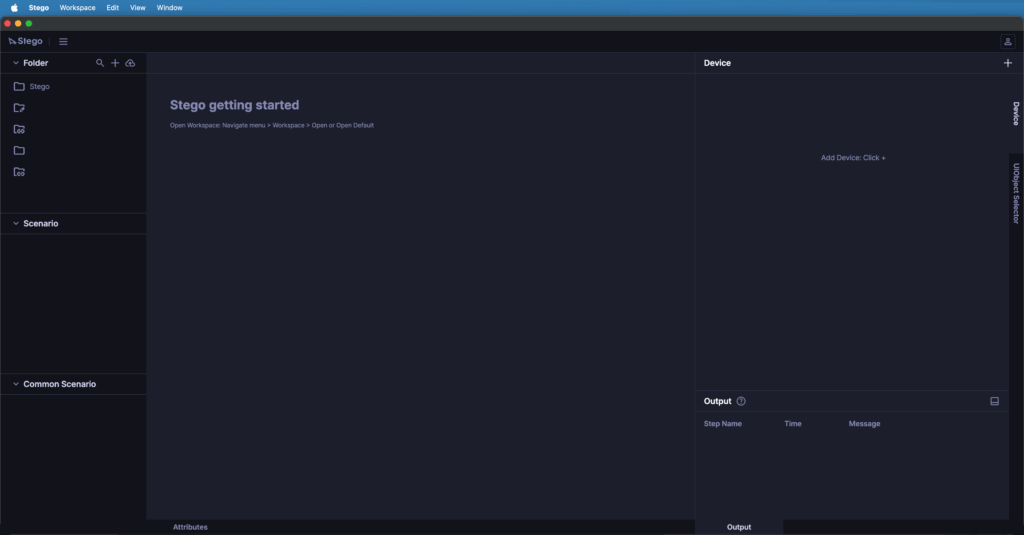
1. Navigation & management (left panel) #
This area is where you organize all your test files and assets.
- Folder & Scenario: Group your test scenarios into folders based on app features or testing milestones so your workspace stays organized.
- Common Scenario: Store repetitive flows—like logging in or passing onboarding screens—as reusable blocks that can be plugged into any test scenario.
2. Editing & execution (top & center) #
This is the main area where you build and run your test flows.
- Top Menu (Global Controls): Manages Stego’s overall environment. Available options vary depending on whether you use the Web or Desktop version.
- Common Menus (Web & Desktop): Includes File (create, add, save), Debug (run scenario), View (reset panels, zoom), and Help (release notes, docs).
- Desktop-Only Menus: The OS-native menu bar provides extended controls for checking versions/updates (Stego menu), switching working folders (Workspace), and using clipboard tools (Edit).
- Scenario Editor: The central canvas where your test logic lives. Assemble steps from top to bottom by recording actions from a device or adding them manually.
- Attributes: Located just below the editor, it allows you to view and configure the detailed properties and conditions of the currently selected step.
3. Device control & results (right & bottom) #
This area is dedicated to interacting with the actual hardware and reviewing execution logs.
- Device: View a live mirror of your connected device and interact directly with the screen (tap, swipe) to control it remotely.
- Record: Your gestures on the mirrored screen will only be automatically converted into scenario steps when you perform them within this active tab.
- UIObject Selector: Work with the live device screen to extract specific UI elements and configure which AI detection strategy (OCR, vision-based object detection, etc.) should be used to find them.
- Output (Bottom Panel): A live console that displays the result of your test executions step by step, allowing you to instantly see where a test passed or failed.