
This section describes how to run tests in a Mobile App project using the Run Test page.
Running a test immediately allows you to validate app behavior and confirm recent updates in real time.
Opening the Run Test Page #
To begin test execution, click  in your Mobile App project.
The Run Test page appears with configuration options for test setup.
Test Configuration #
Configure your test before execution to define what, where, and how the test runs.
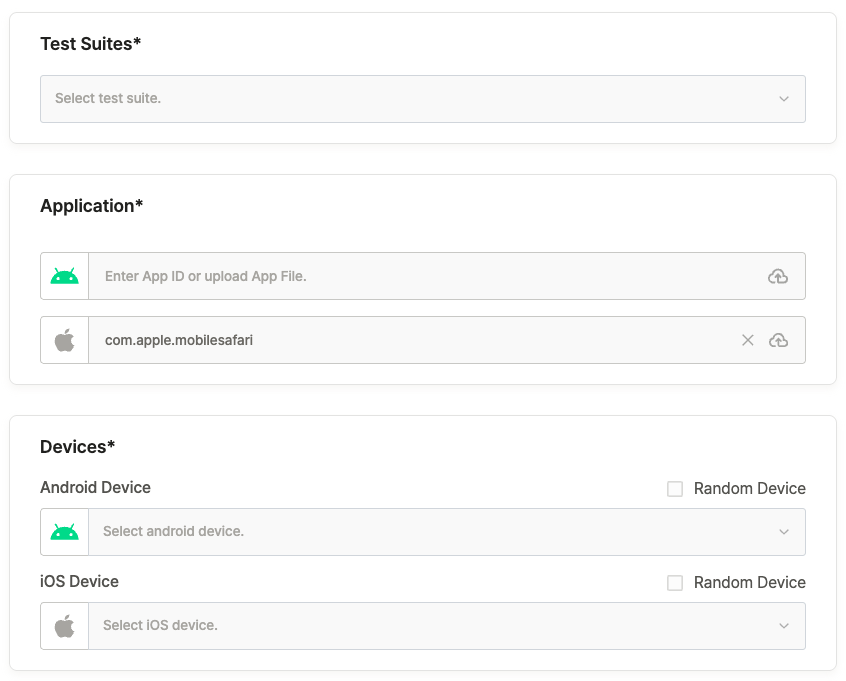
| Item | Description |
|---|---|
| Test Suites | Select a Test Suite to execute. |
| Application | Choose an app for testing. The project’s default app appears automatically, but you can change it. |
| Devices | Select devices to run the test on. Free users can use Random Device only. Paid users can select specific devices. |
| Test Duration | Define the test run time. The default duration is 15 minutes. |
Additional Settings (Optional) #
For more control over test conditions, configure Device Settings, Test Run Settings, and Advanced Settings.
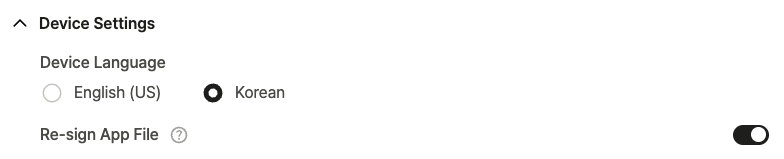
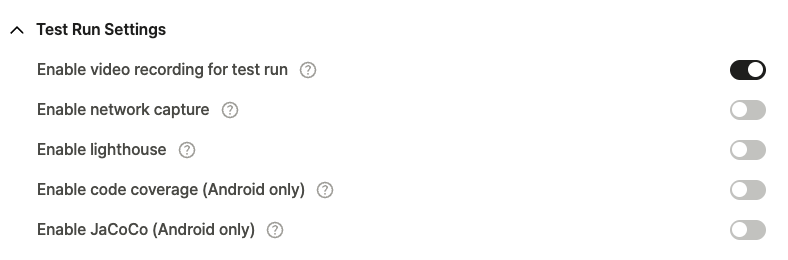
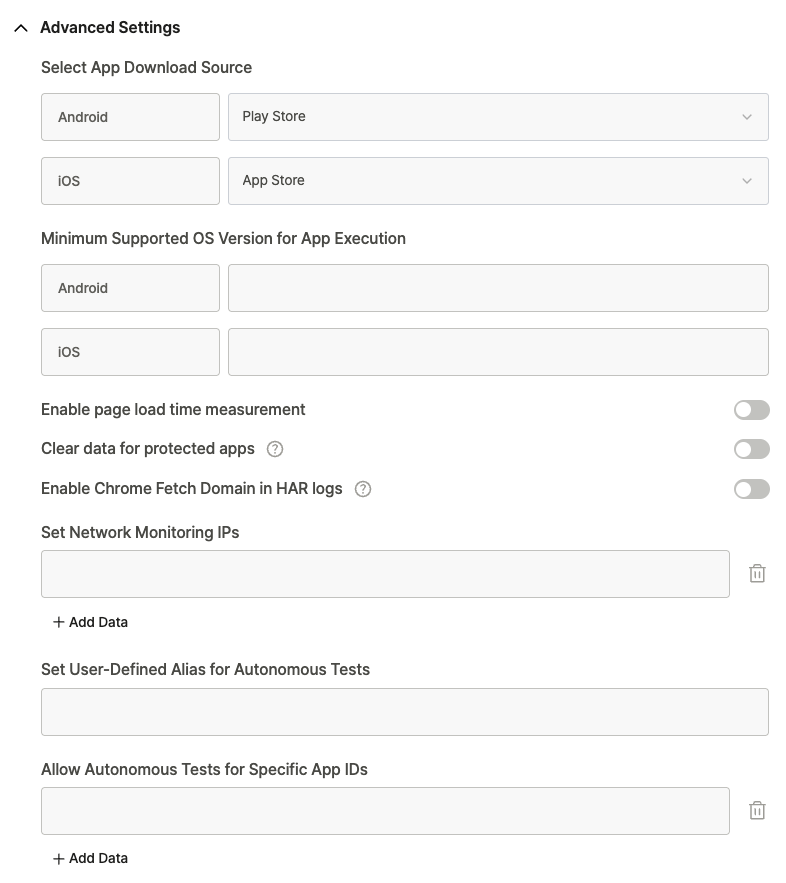
These options let you adjust parameters such as device language, network analysis, and performance measurement.
Default values are automatically provided and can be modified as needed.
To learn more, see [Ptero User Guide › 6.0. Project Settings].
Starting the Test #
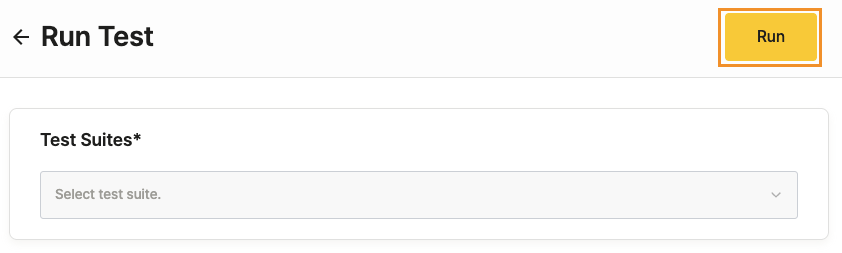
After configuration is complete, click Run in the upper-right corner of the page.
The test starts immediately, and you can confirm its creation in the Run Results tab of the project.
By default, it appears under Recent Test Suite Runs in the Run Results section.