
Schedule tests to run automatically — overnight, on weekends, or after every deployment.
One-time vs. recurring: which to use? #
| One-time | Recurring | |
|---|---|---|
| Best for | Post-deploy tests, one-off build verification | Overnight monitoring, weekend regression, continuous quality checks |
| Behavior | Runs once at the scheduled time | Creates tests back-to-back (with Interval gaps) between Start Time and End Time |
| End Time | Not set | Required — when new tests stop being created each day |
| Ends | — | When the schedule itself expires (see below) |
| Frequency | Daily, specific weekdays, weekends, or N times | Same options |
Building a schedule in 3 steps #
Schedules combine ① timing, ② repeat pattern, and ③ end condition.
① Timing (Start Time / End Time / Interval)
- Start Time only → Runs one test at that time (one-time run)
- Start Time + End Time → Creates tests repeatedly within that daily window:
after each test finishes, the system waits for the Interval, then creates the next test (recurring run)
How recurring runs work:
- First test is created at Start Time
- After each test finishes, the system waits for the Interval (minutes), then creates the next test — as long as End Time hasn’t passed
- After End Time, no new tests are created. Any test already running finishes on its own.
Example:
Test takes 10 min, Interval = 10 min, Start Time = 10:00,
End Time = 10:40 → 10:00 run → 10:20 run → 10:40 run (already created) → nothing after 10:50
② Repeat pattern (Repeat On)
| Option | Behavior |
|---|---|
| Does not repeat | Runs on the set date only, then stops |
| Every day | Repeats at the same time every day |
| Weekdays | Monday through Friday only |
| Weekends | Saturday and Sunday only |
| Custom | Pick specific days of the week |
Note:
If the Date you set falls on a day that isn’t included in your Repeat On selection,
the schedule skips that date and starts on the next matching day.
Example: Date = 2025-07-15 (Tuesday), Custom = Sun/Wed–Sat → No run on Tuesday. First run starts Wednesday July 16.
③ End condition (Ends)
| Condition | Behavior |
|---|---|
| Never | Repeats indefinitely until you turn it off |
| On [date] | Last run starts on that date. Even if End Time crosses midnight (e.g., 20:00–02:00), tests already started will finish — but the schedule won’t start again the next day |
| After [N] times | Stops automatically after N executions |
Examples #
Start Time only + Every day + Ends Never
Starting July 15 at 5:10 PM, one test runs at the same time every day.
No end condition — the schedule repeats indefinitely.
Start Time only + Weekdays + Ends On 2025-07-16
Starting July 15 at 5:30 PM, tests run on weekdays at the same time.
The July 16 run is the last one; the schedule stops automatically after that.
Start Time only + Custom (Sun/Wed–Sat) + Ends After 4 times
Set for July 15 (Tuesday) at 5:35 PM, but Tuesday isn’t in the Custom selection
— first run starts Wednesday July 16.
Runs once on each matching day. The schedule stops automatically after 4 total runs.
Start/End Time + Does not repeat
July 15, 4:15 PM–5:15 PM — after each test finishes, the system waits for the Interval, then creates the next test.
After 5:15 PM, no more tests are created. The schedule does not repeat.
Creating a schedule #
Go to the Schedules tab in your project, click Create New Schedule, and configure the following:
| Field | Mobile App | D2D Mobile App |
|---|---|---|
| Schedule Name | Name your schedule | Same |
| Test Suite | Pick one or more Test Suites to run | Same |
| Application | Choose an app registered in the project | — (included in Test Suite) |
| Device | Choose a test device (Free plan: Random Device only) | — (included in Test Suite) |
| Date / Start Time | Set the start date and time | Same |
| End Time / Interval | Set for recurring runs (see 3-step guide above) | Same |
| Repeat On / Ends | Set repeat pattern and end condition (see above) | Same |
D2D Mobile App projects include device configuration in the Test Suite, so you don’t select devices separately in the schedule.
To change devices, edit the Test Suite settings.
Click Create to save. New schedules start inactive — see Activating a schedule below.
Accessing the schedules page #
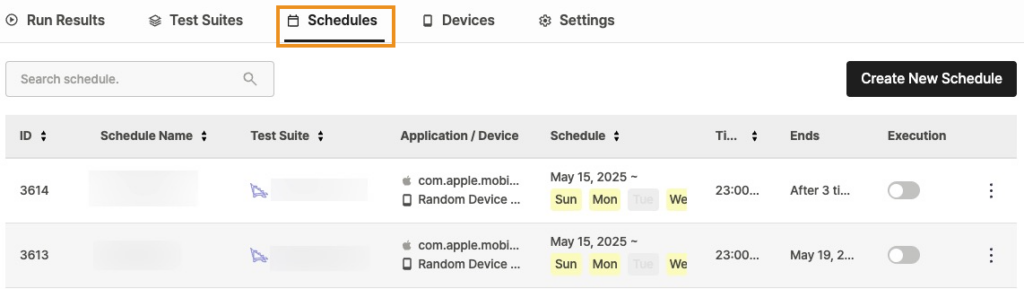
Method 1: Click the calendar icon in the project list.

Method 2: Select a project → click the Schedules tab in the top menu.
Viewing your schedules #
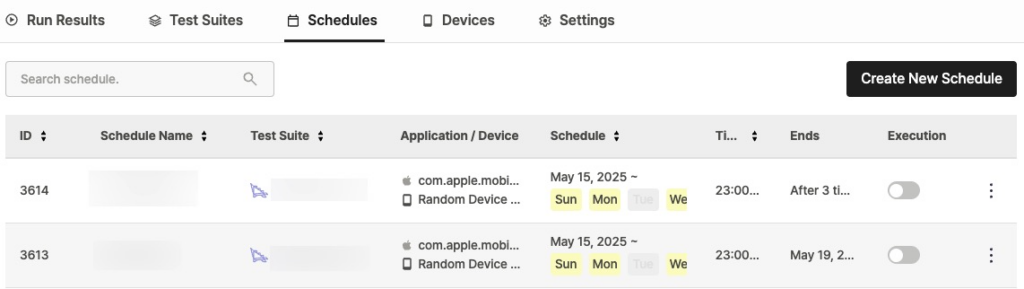
The Schedules tab lists all registered schedules. Use the search bar to filter by name.
Key columns to check first:
- Execution (ON/OFF): Whether the schedule is actually running. New schedules default to OFF.
- Schedule / Time / Ends: When it starts, what time it fires, and when it stops.
- Application / Device: Hover for full Test Suite details in a tooltip.
- Test Suite: Scenario Test Suites show a Stego icon before the name.
Activating a schedule #
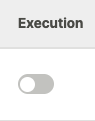
New schedules default to OFF.
Turn on the Execution switch to activate — tests will start running at the configured time.
Editing, copying, and deleting schedules #
Click the ︙ button next to any schedule:

- Copy: Duplicates the schedule (created as inactive, name appended with
Copy 1). - Edit: Modify schedule settings. Deactivate the schedule first — active schedules can’t be edited.
- Delete: Permanently removes the schedule. This can’t be undone.
Schedule names must be unique within each project.