
Stego Web currently supports both local and remote connections on Windows desktop environments.
| Device Type | Remote Connection (Device Farm) | Local Connection (Local) |
|---|---|---|
| Desktop (Windows) | Supported | Supported |
| Mobile | Coming soon | Not supported |
Select and Connect a Device #
Click + in the Device panel to open Add Device and connect devices. (Up to 4 simultaneous connections)
- AVAILABLE: Ready to connect
- CONNECTED: Currently connected by you
- IN USE: Another user is connected, or a Ptero test is running (cannot connect)
- REBOOTING: Rebooting in progress
Connect a Local Desktop (ReX Agent) #
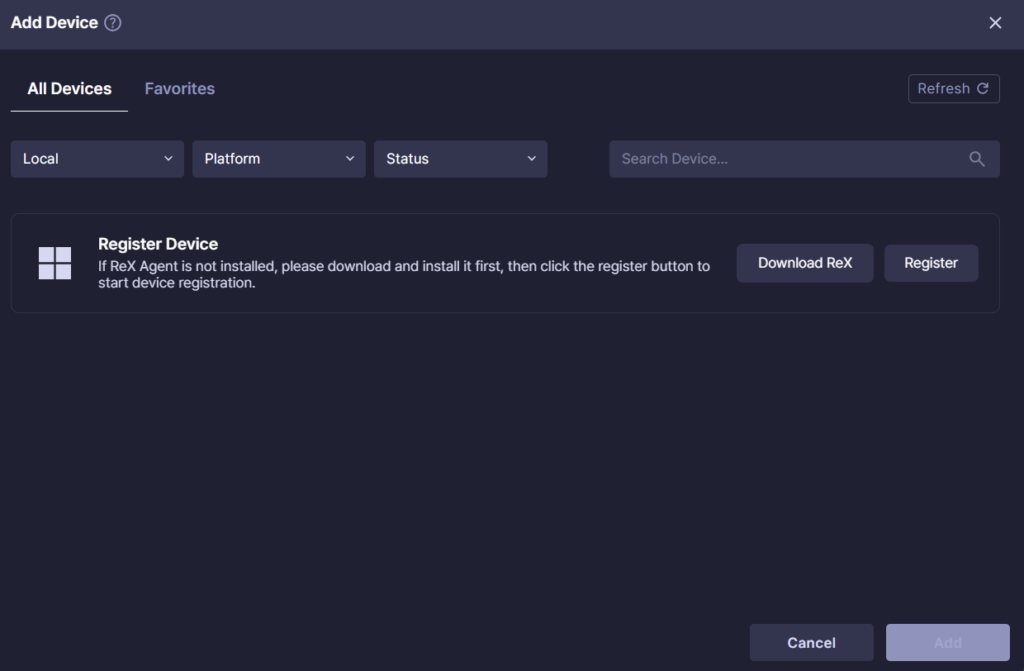
To connect your local desktop to Stego Web, you must install the ReX Agent.
Local Desktop connections are supported on Windows only.
1. Download ReX Agent #
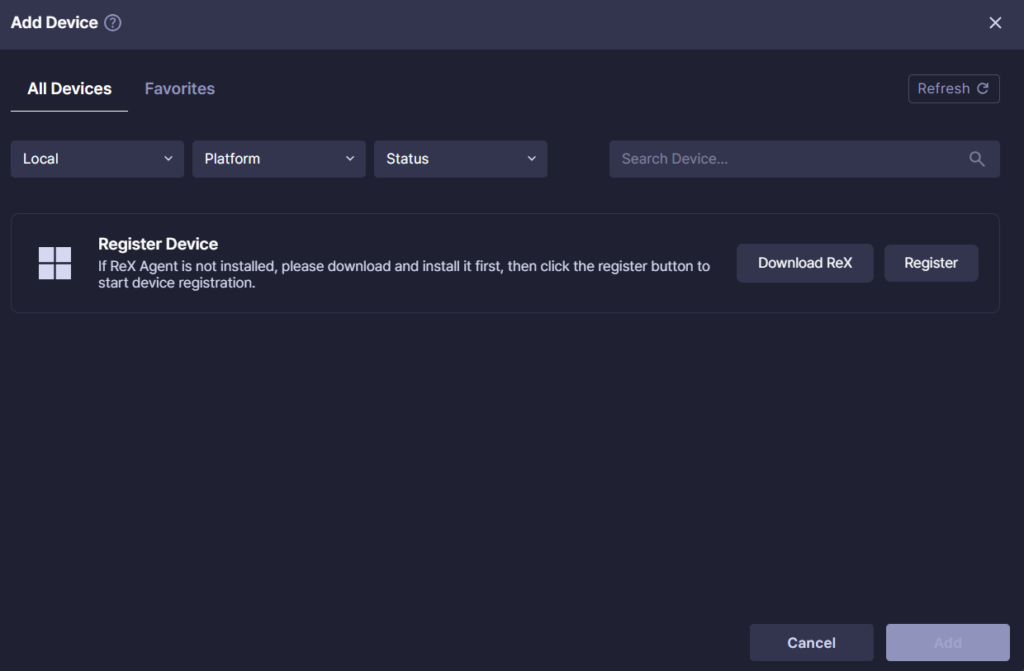
Select Local in the Device Farm filter under All Devices, then click Download ReX to download the installer.
2. Install ReX Agent #
Run the downloaded installer to proceed with the installation.
If Microsoft Defender SmartScreen blocks the installation, click More Info → Run Anyway.
When the User Account Control (UAC) prompt appears, click Yes
3. Device Registration and Connection #
After installation, click Register.
When the Open ReX-Service? prompt appears, select Open ReX-Service.
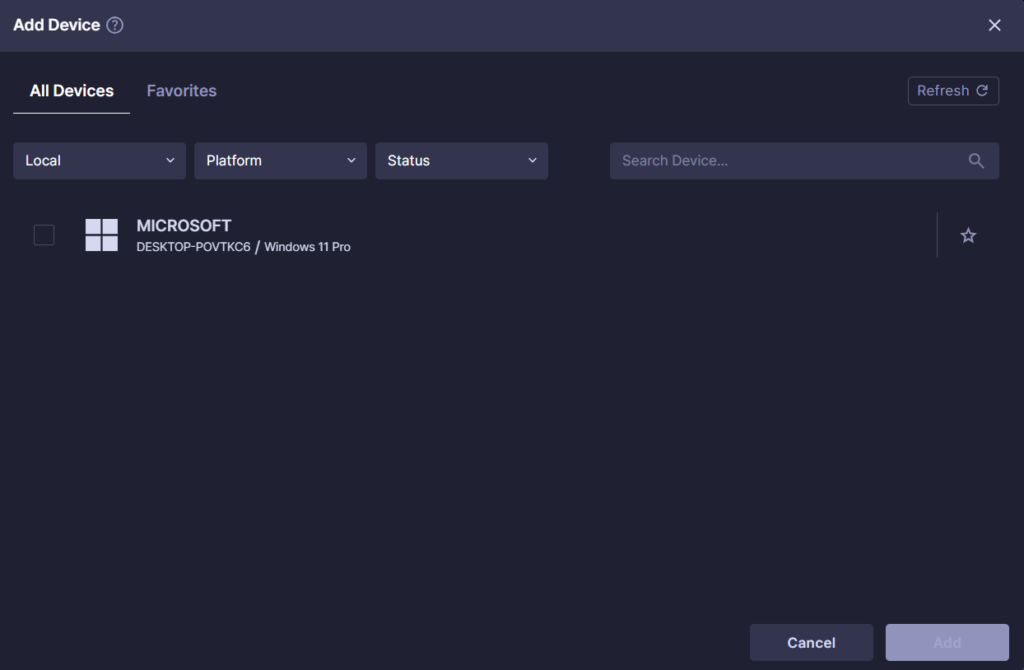
Once registered, you can connect the Local Desktop.
ReX Agent status and exit:
- System Tray (bottom-right of taskbar)
- Check: If the ReX icon is visible, the agent is running
- Exit: Right-click the icon → Exit
- Quick Menu (hover near the top-center of the screen to reveal)
- Exit: Click the Exit icon
Verify and Disconnect #
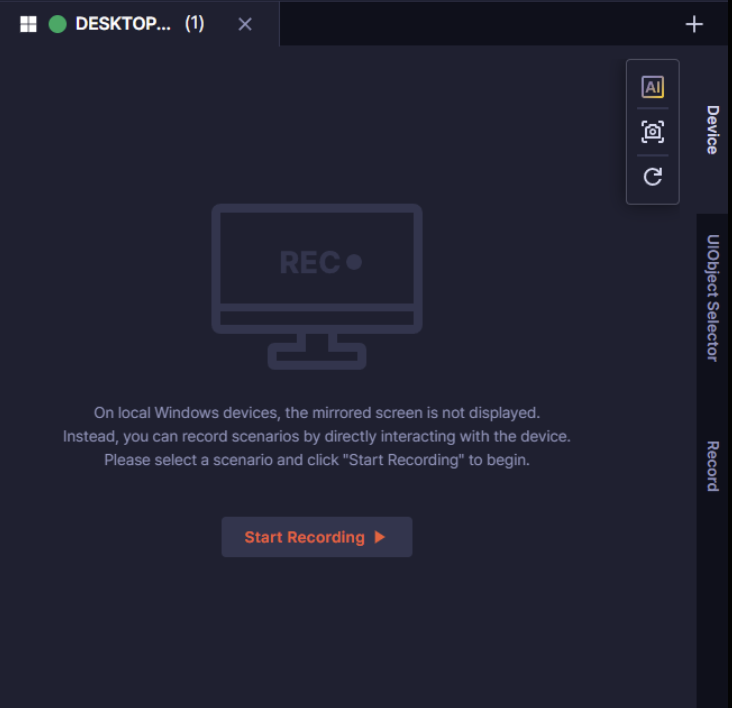
Connected devices can be found in the Device tab.
If a device is idle for 10 minutes, a disconnect warning appears.
After 1 more minute of inactivity, the connection ends automatically.