
Stego Web currently supports both local and remote connections on Windows desktop environments.
| Device Type | Remote Connection (Device Farm) | Local Connection (Local) |
|---|---|---|
| Desktop (Windows) | Supported | Supported |
| Mobile | Coming soon | Not supported |
Select and Connect a Device #
- In the Device panel, click + to open Add Device.
- In the device list, select the checkbox for the device you want.
- Click Add.
- You can connect up to four devices at the same time.
- Device Farm filter: Filter devices by connection type (remote or local).
- Platform filter: Filter devices by operating system, such as Android or iOS.
- Status
- AVAILABLE: Available for immediate connection
- CONNECTED: Currently connected and in use
- IN USE: Currently in use by another user or Ptero
- REBOOTING: Rebooting
- Favorites (★): Click the star icon to pin frequently used devices to the top of the list.
Connect a Local Desktop (ReX Agent) #
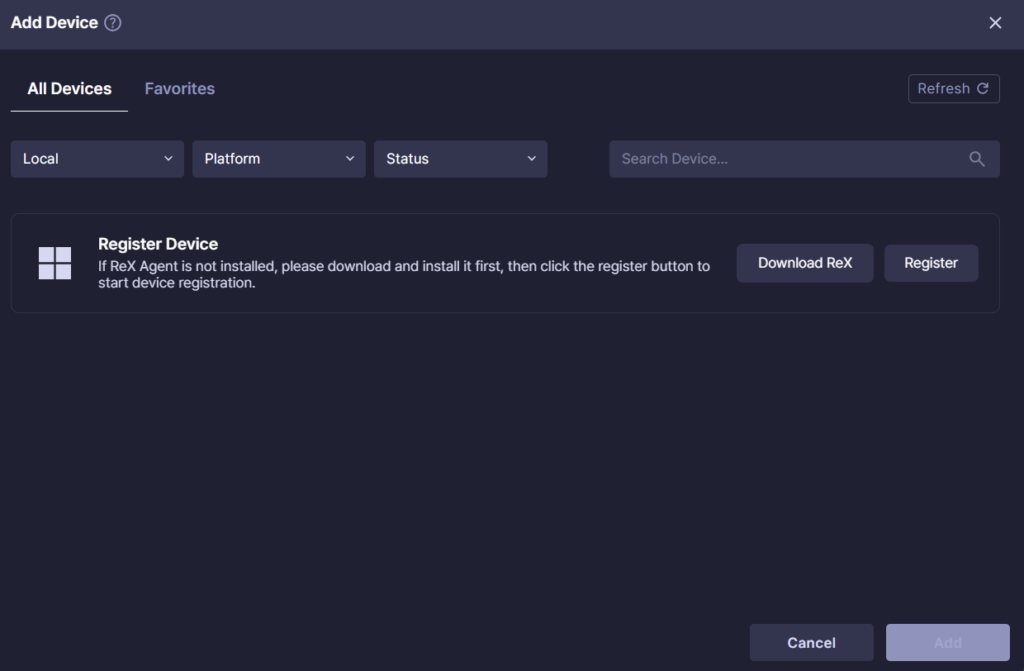
To connect your local desktop to Stego Web, you must install the ReX Agent.
Local Desktop connections are supported on Windows only.
1. Download ReX Agent #
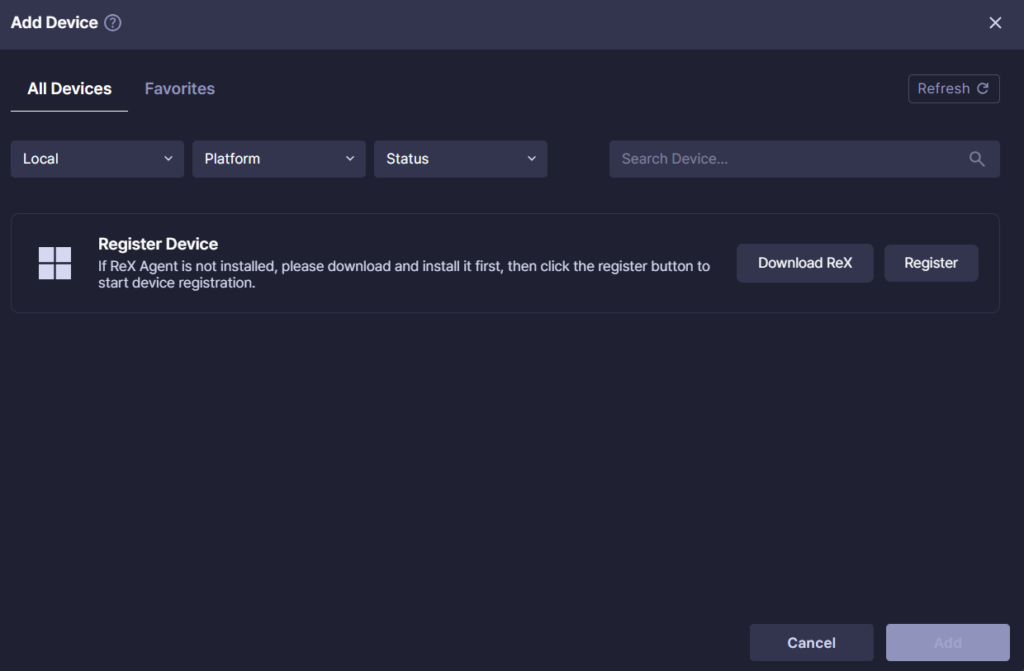
Select Local in the Device Farm filter under the All Devices tab, and click the Download ReX button to download the ReX Agent installation file.
2. Install ReX Agent #
Run the downloaded installation file to install ReX Agent. Depending on the installation environment, a Windows security-related popup may appear.
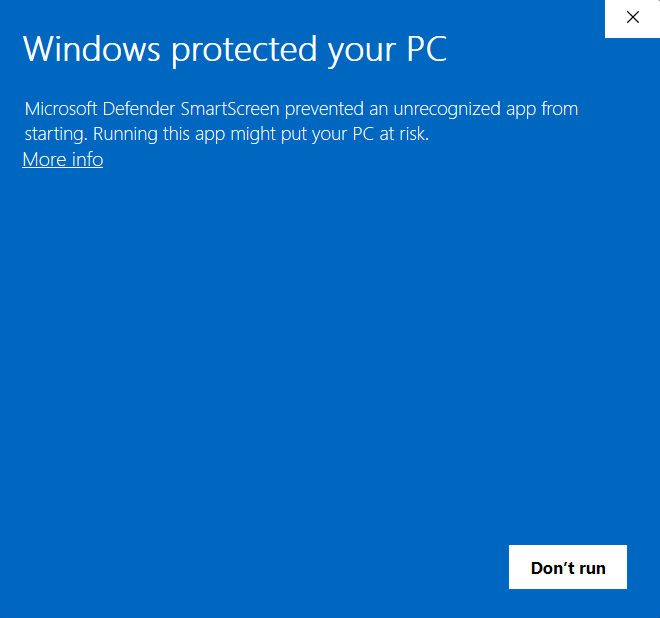
If the “Windows PC Protection” popup (Microsoft Defender SmartScreen) appears, click for More Info and then select the Run Anyway button.
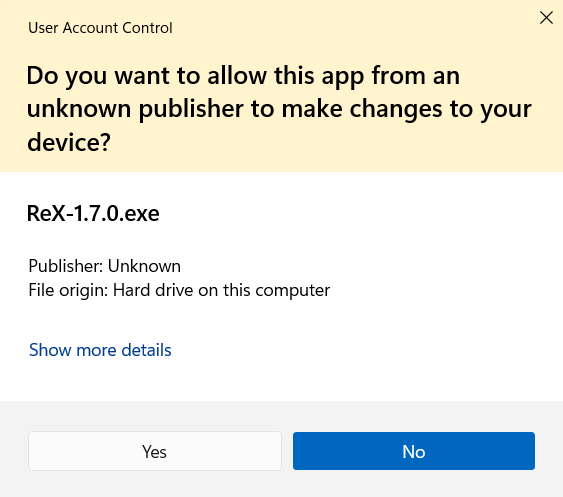
When the User Account Control (UAC) pop-up appears, click Yes to approve the installation.
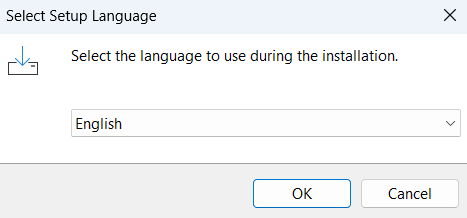
On the installation language selection screen, select the desired language (Korean or English) and click OK.
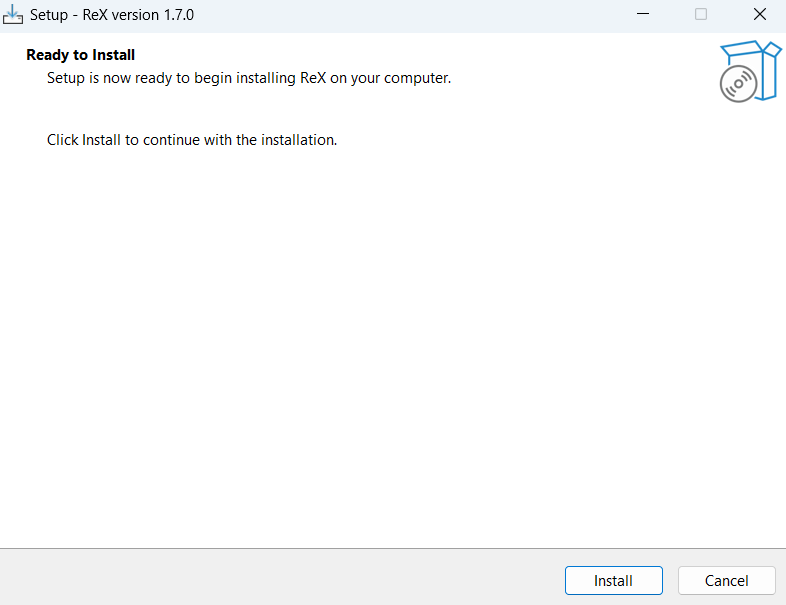
On the installation ready screen, click Install to start the installation.
3. Device Registration and Connection #
After installation is complete, click the Register button.
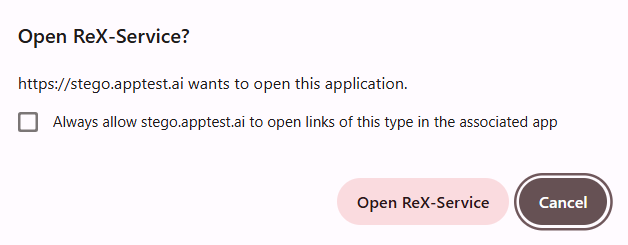
When the Open ReX-Service? prompt appears, select Open ReX-Service.
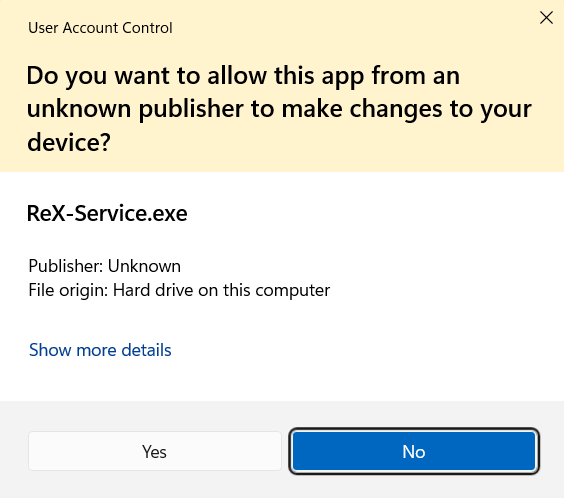
When the User Account Control (UAC) popup appears, click Yes to approve the desktop registration.
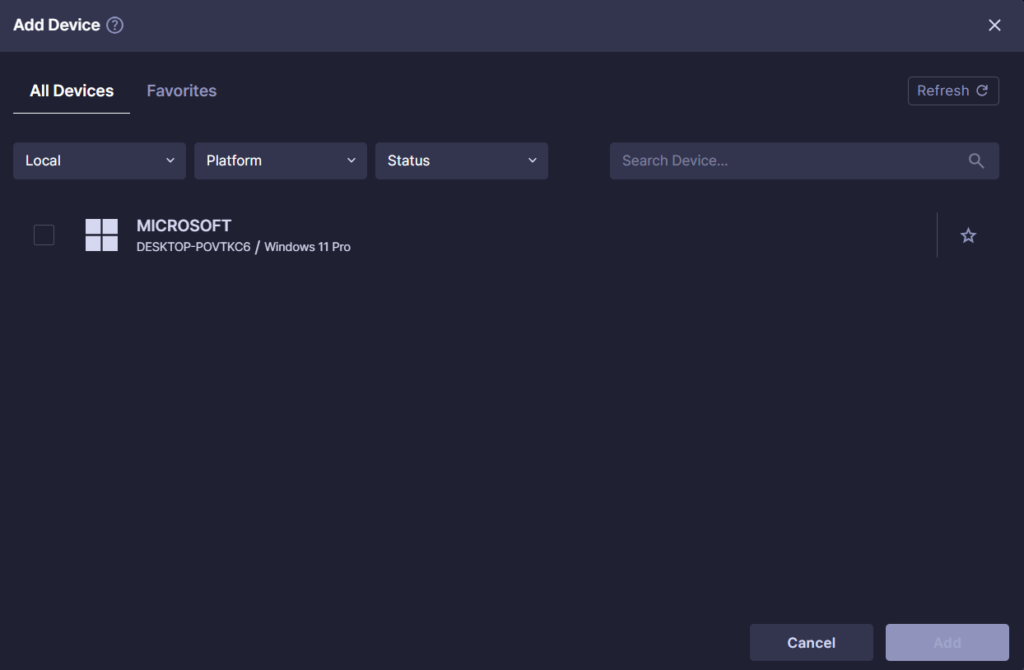
After the desktop registration is complete, select the Local Desktop and click Add to connect.
To check the status of the ReX Agent or to exit the program, use the following methods.
- System Tray (bottom right of the taskbar)
- Check: If the ReX icon appears, ReX Agent is running.
- Exit: Right-click the icon, then click Exit.
- Quick Menu
- Check: Hover near the top-center edge of your monitor to reveal the hidden menu.
- Exit: Click the Exit icon on the right side of the menu.
Verify and Disconnect #
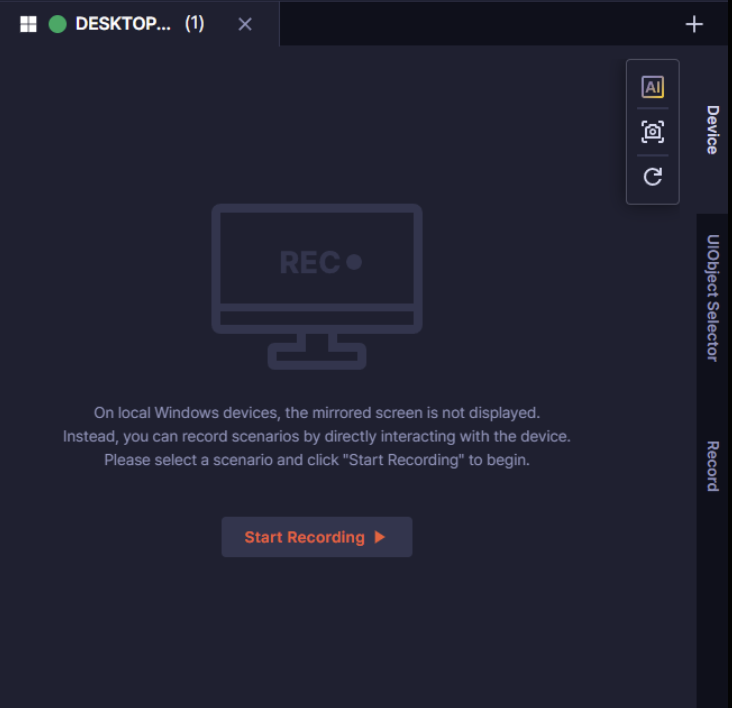
In the Device tab, you can see connected devices.
Click X on the right to disconnect a device.
If you don’t use a device for 10 minutes, Stego shows a disconnect warning. If there’s no activity for 1 more minute, Stego ends the connection automatically.