
Execute tests instantly to validate app behavior and confirm recent updates in real time.
Accessing Run Test #
To launch a test immediately, access the Run Test feature in your project through either of the following methods:
Method 1: Click the Run icon directly from the Project List.

Method 2: Open a project and click the Run Test button in the top-right corner.
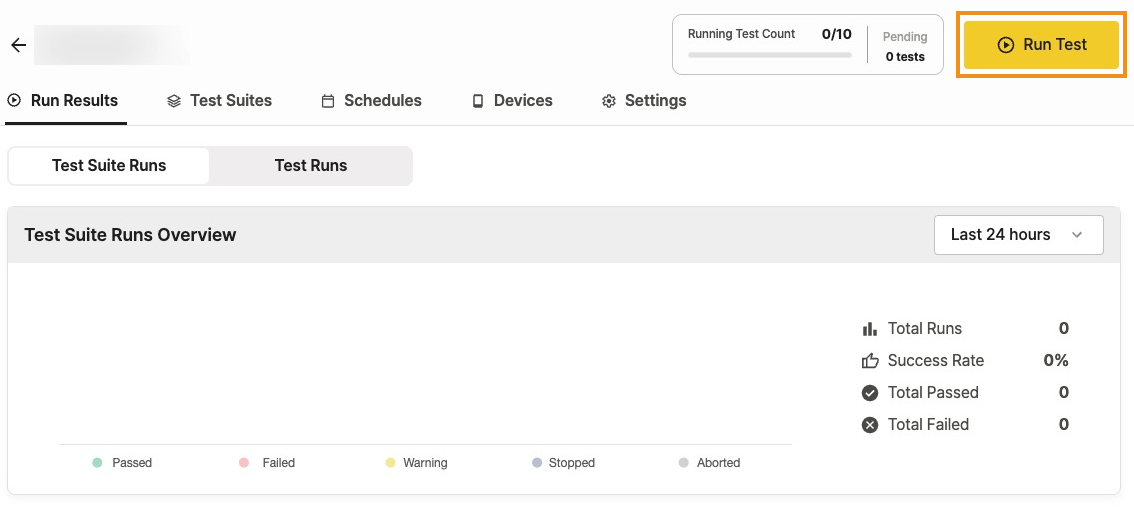
The Run Test page displays options to configure your test execution.
Test Configuration #
Select and configure your required test parameters before execution. Note that the available fields will differ depending on your project type.
| Field | Description | Mobile App | D2D Mobile App |
|---|---|---|---|
| Test Suites | Select the specific Test Suite you want to execute. | ✓ | ✓ |
| Application | Choose the app target for testing. The project’s default app is pre-selected, but you can change it if necessary. | ✓ | — |
| Devices | Choose the devices to run the test on. Free-tier users are restricted to Random Device, while paid-tier users can specify target devices. | ✓ | — |
| Test Duration | Define the maximum running time for the test. The default duration is 15 minutes. | ✓ | ✓ |
Note:
For D2D projects, the Application and Devices are configured directly within the Test Suite rather than on this page.
Additional Settings (Optional) #
For more granular control over your testing environment, configure Device Settings, Test Run Settings, and Advanced Settings.
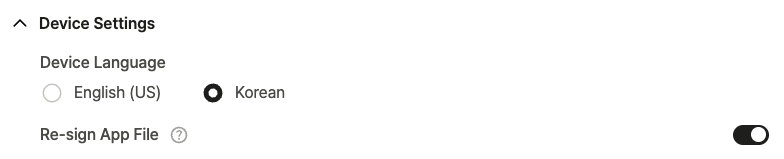
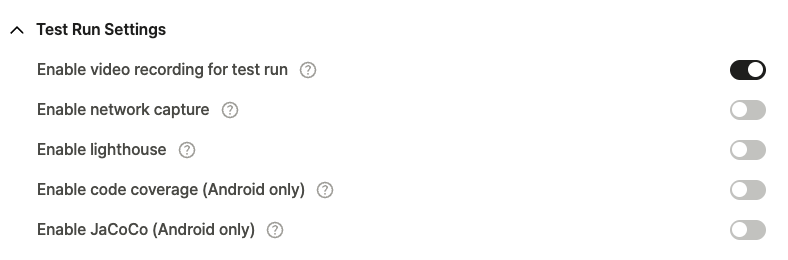
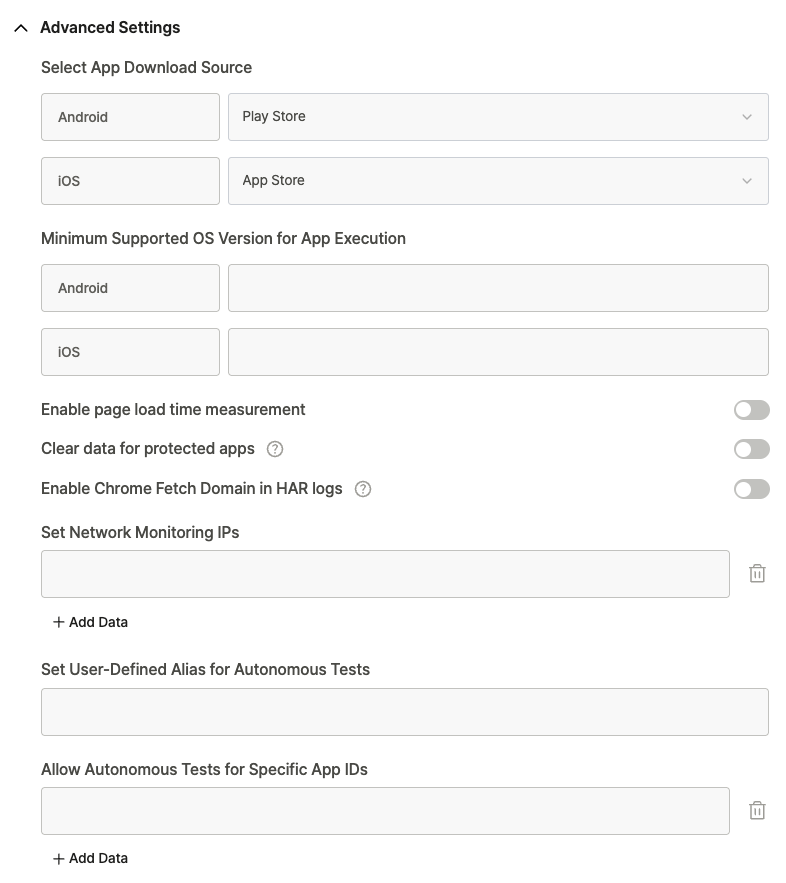
Fine-tune parameters such as device language, network analysis behavior, and performance measurement metrics.
Default values ensure standard execution, but change them if necessary for your specific testing needs.
To learn more about configuration details, see Project Settings.
Starting the Test #
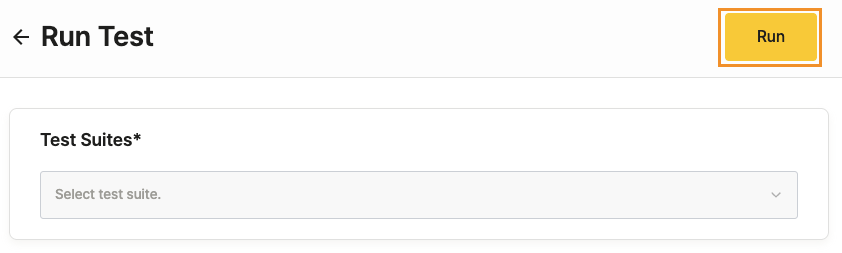
Once all configurations are set, click Run in the upper-right corner of the page.
The test commences immediately. Track its progress and verify creation in the Run Results tab.
By default, newly initiated tests appear under Recent Test Suite Runs within the Run Results section.
Note (D2D Mobile App):
Before executing a D2D test, ensure both necessary devices are properly connected and available for the run.