
Connect real devices in Stego before running a scenario. After a device is connected, use it from the Device tab to run the scenario and check the device behavior.
Before you start #
- Make sure the device you want to connect is in
AVAILABLEstatus. Devices inIN USEorREBOOTINGstatus cannot be connected immediately. - Stego supports up to 4 connected devices at the same time.
- Local device connection is available only with a paid license.
- The IPTV option is available only with an IPTV license.
Steps #
1. Open the Add Device window #
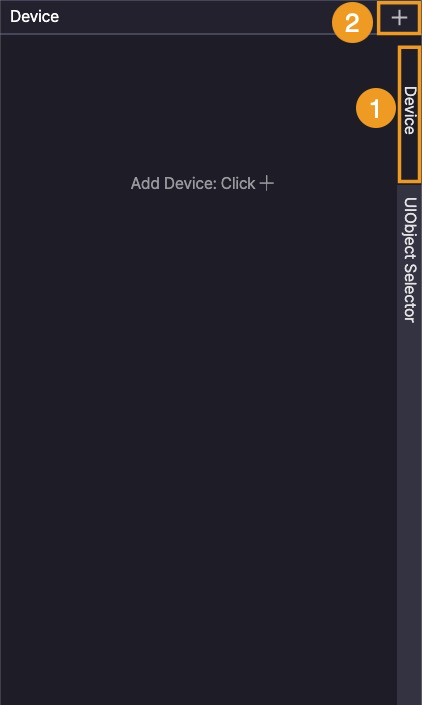
- Open the Device panel.
- Select the Device tab.
- Click the
+button.
The Add Device window opens and lists the devices you can choose from.
2. Find a device #
Use search and filters in the Add Device window to find the device you want to connect.
Enter a manufacturer, model name, or another device keyword in the search field.
| Filter | Options | Use when |
|---|---|---|
| Device Farm | Device Farm, Local | Narrow the list by device location. |
| OS | All, iOS, Android, IPTV | Show only devices for a specific OS type. |
| Status | All, Available, Connected, In Use | Separate connectable devices from devices already connected or in use. |
If the list looks outdated, click Refresh to reload the device list and status.
3. Check device status and information #
Check the status before selecting a device.
| Status | Meaning | What to do |
|---|---|---|
| AVAILABLE | The device is ready to connect. | Select the checkbox to connect the device. |
| CONNECTED | The device is already connected to your Stego session. | Use it in the Device tab, or disconnect it when finished. |
| IN USE | Another user or a Ptero test is using the device. | Choose another device or wait until the device becomes available. |
| REBOOTING | The device is restarting after a test or disconnected session. | Wait until the status changes to AVAILABLE, then select the device. |
The device list also shows the following information.
| Information | Description |
|---|---|
| OS | Shows the OS type, such as iOS, Android, or IPTV. |
| Device Info | Shows the manufacturer, model name, and OS version. |
| Status | Shows whether the device is available to connect. |
4. Select devices #
Select the checkbox for each device you want to connect. A single connection can include up to 4 devices.
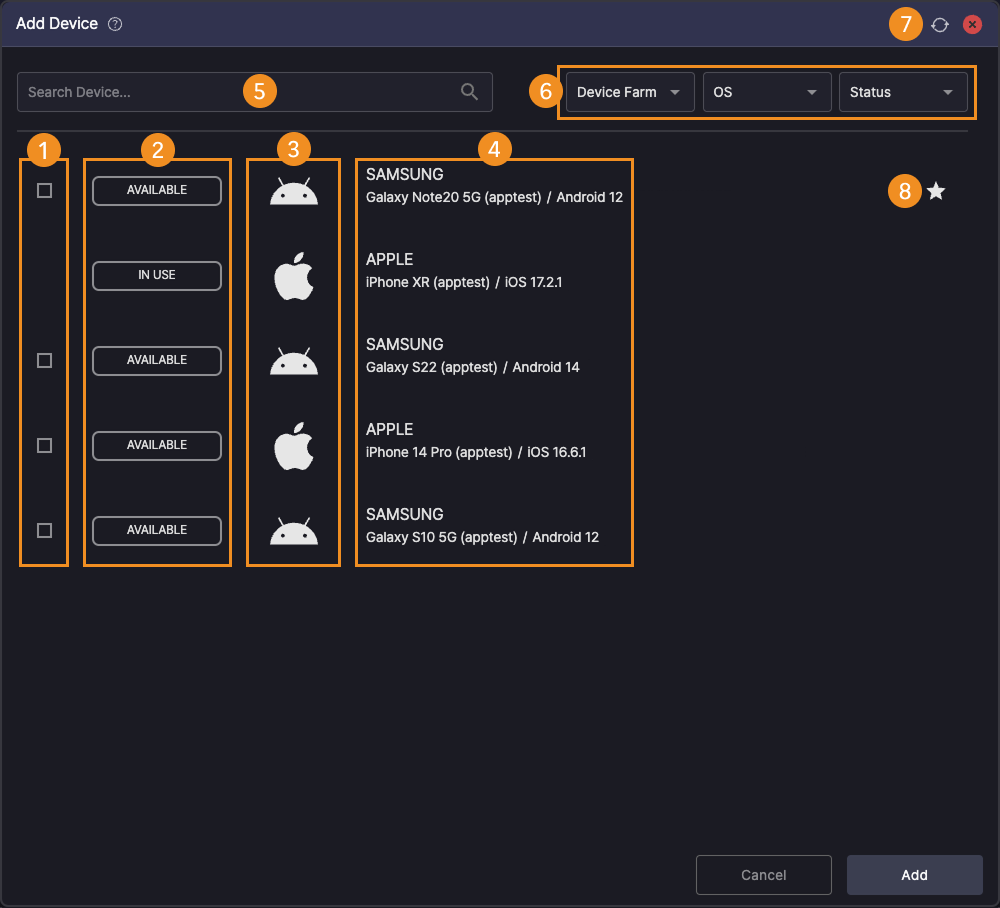
Devices in IN USE or REBOOTING status cannot be connected immediately. Choose another device, or click Refresh to check the latest status.
5. Favorite frequently used devices #
Add frequently used devices to Favorites so they appear at the top of the list.
- Hover over a device in the device list.
- Click the favorite icon when it appears.
- Click the icon again to remove the device from Favorites.
Check the result #
After the device is connected, its name appears in Device panel > Device tab.

Disconnect #
Click the X button next to the connected device to disconnect it.

If a device is inactive for 10 minutes, a disconnect warning appears. If there is no action for 1 minute after the warning, the device is disconnected automatically.