
Windows PC connections are supported only in the web version of Stego (stego.apptest.ai).
In the web version of Stego, you can connect a Windows PC in one of two ways:
- Remote connection (Device Farm): Available only for paid accounts or accounts enabled for proof-of-concept (PoC) or testing purposes.
- Local Desktop connection: Install ReX Agent, register the Windows PC you are using, and connect it as a Local Desktop.
Trial account users should use Local Desktop connection to test a Windows PC.
If your account supports remote connection, select the PC in the Add Device window.
For details on finding and selecting a device, see Connecting a mobile device.
This document explains how to register and connect your current Windows PC as a Local Desktop by using ReX Agent.
Before you start #
- Local Desktop connection is supported only on Windows OS.
- To connect a Local Desktop, install ReX Agent on the Windows PC and register the device first.
- Stego supports up to 4 connected devices at the same time.
Steps #
1. Download ReX Agent #
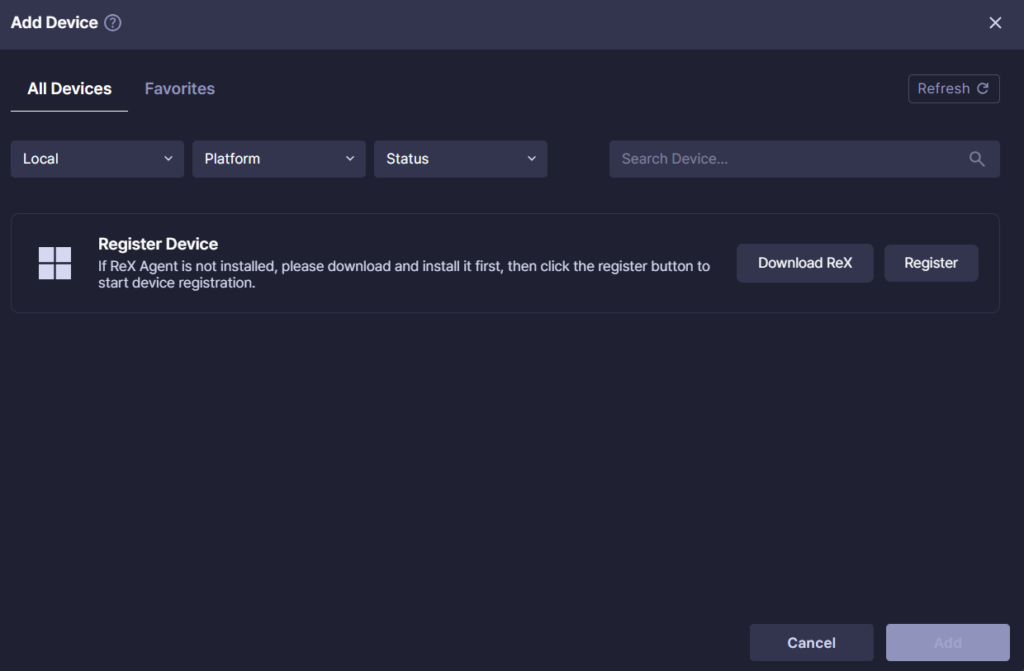
- In the Device panel, click the
+button to open the Add Device window. - Select the All Devices tab.
- In the Device Farm filter, select
Local. - Click
Download ReXto download the installer.
2. Install ReX Agent #
Run the downloaded installer and follow the installation steps.
A Windows security confirmation window may appear during installation.
| Window | What to do |
|---|---|
| Microsoft Defender SmartScreen | Click More info, then select Run anyway. |
| User Account Control (UAC) | Click Yes. |
3. Register the Local Desktop #
- After installation, click
Register. - When the browser shows the
Open ReX-Service?popup, selectOpen ReX-Service. - If the User Account Control (UAC) window appears, click
Yes.
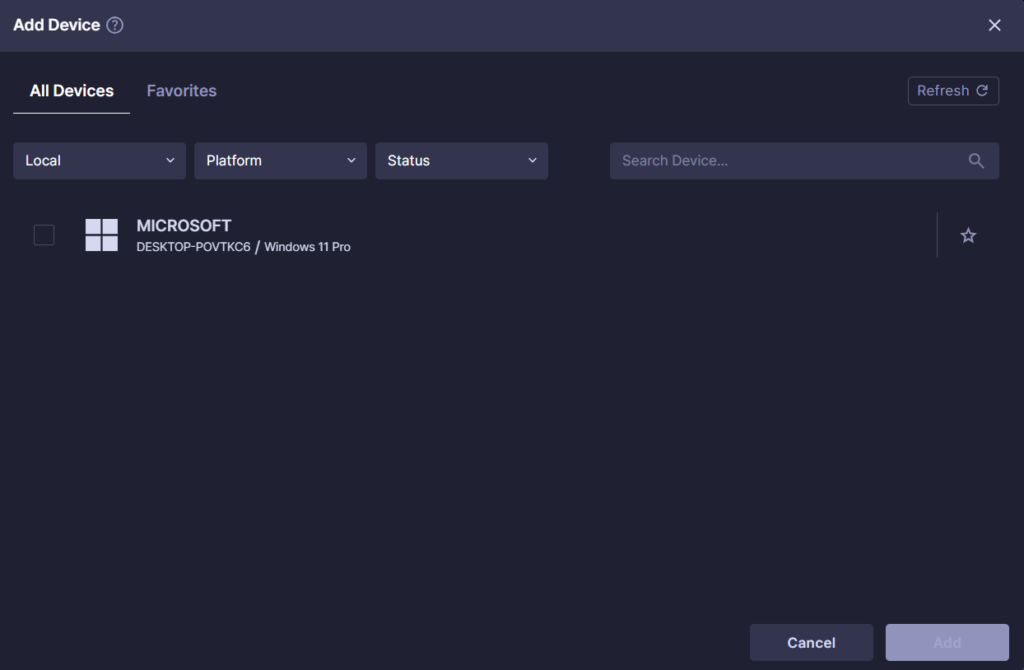
After registration, the Local Desktop appears as a connectable device in the Add Device window.
4. Connect the Local Desktop #
In the Add Device window, select the registered Local Desktop and connect it.
Check the device status in the device list before connecting.
| Status | Meaning | What to do |
|---|---|---|
| AVAILABLE | The device is ready to connect. | Select the Local Desktop and connect it. |
| CONNECTED | The device is connected and in use by a user. | Use it in the Device tab, or disconnect it when finished. |
| IN USE | Another user is connected to the device, or a Ptero test is running on it. | Choose another device or wait until the status changes. |
| REBOOTING | The device is restarting. | Wait until the status changes to AVAILABLE. |
Check the result #
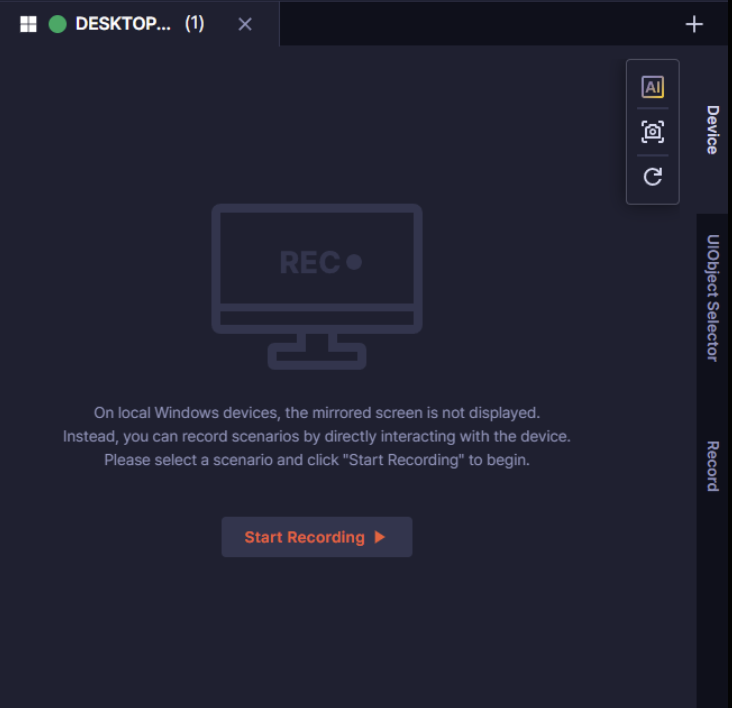
After the connection is complete, the connected Local Desktop appears in the Device tab.
Check or exit ReX Agent #
Use the system tray or quick menu to check whether ReX Agent is running or to exit it.
| Location | How to check or exit |
|---|---|
| System tray | If the ReX icon appears in the bottom-right corner of the taskbar, ReX Agent is running. To exit, right-click the ReX icon and select Exit. |
| Quick menu | Move the mouse pointer to the top center of the screen to show the quick menu, then click the Exit icon. |
Disconnect and automatic timeout #
If the device is inactive for 10 minutes, a disconnect warning appears. If there is no action for 1 minute after the warning, the connection ends automatically.