v1.28.0 (08 28, 2026) #
This release is all about data-driven testing. Three new actions let you feed a scenario with real data, capture the values it produces, and keep supporting evidence attached to your results. We’ve also made gestures easier to read on screen and made it much clearer why a step failed.
Unless noted otherwise, all changes apply to both Stego Web and Stego for Desktop
1. New action: Loop Data #
Run one scenario against many inputs.
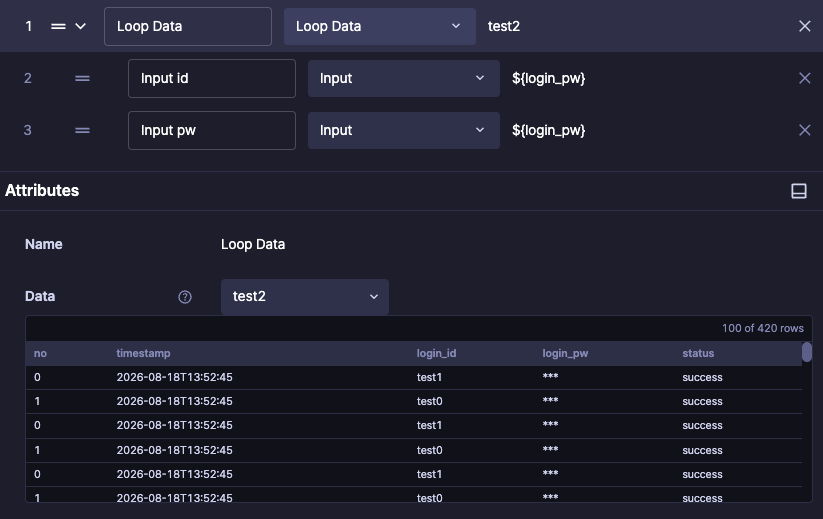
Testing the same flow with ten different accounts used to mean ten near-identical scenarios. Loop Data runs a single scenario once per row of your data set.
- Upload a CSV as a data set in Scenario Settings, then select it in the action.
- The first row of the CSV defines the column names, which become variable names.
- Each iteration runs with the values from the next row.
2. New action: Collect Data #
Capture what your tests discover.
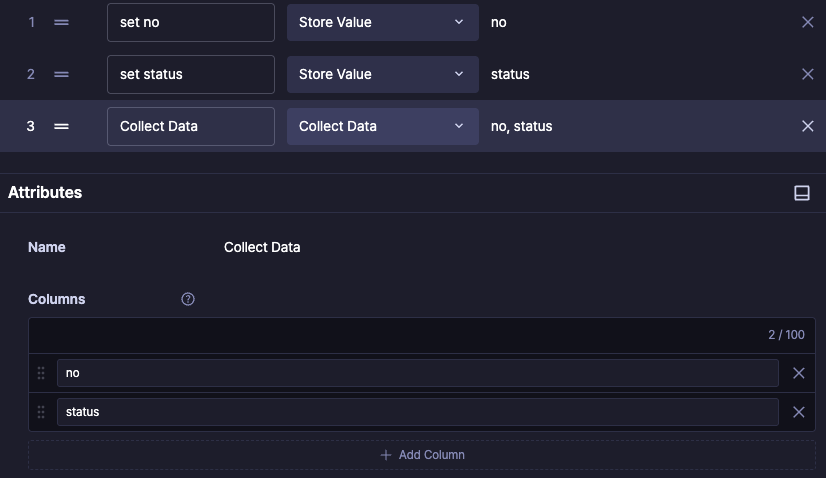
Your runs produce useful values — now you can keep them. Collect Data records User Variable values as structured data.
- Choose which variables to collect; each becomes a column.
- One row is added each time the action runs.
- Download the results as a CSV anytime — Secure Variables stay masked.
3. New action: Artifact #
Keep the evidence with your results.
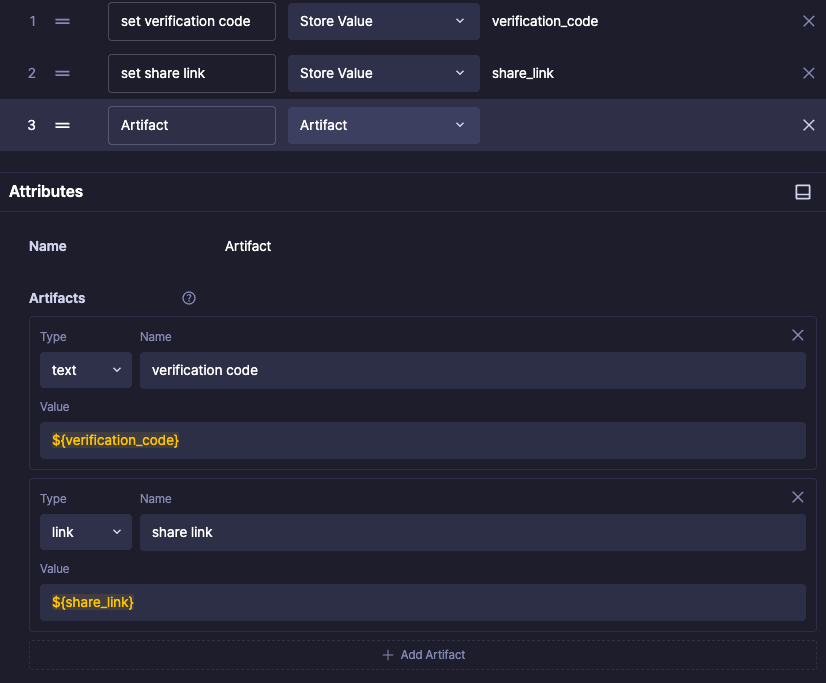
Sometimes pass/fail isn’t the whole story. Artifact attaches supporting material directly to the test result.
- Enter the value to keep and choose its type: text, link, or file path.
- Values can include User Variables, so you can capture things that only exist at run time — an order number, a generated URL, a downloaded file.
4. New feature: AI Step Generation #
Turn natural-language instructions into ready-to-use Steps.
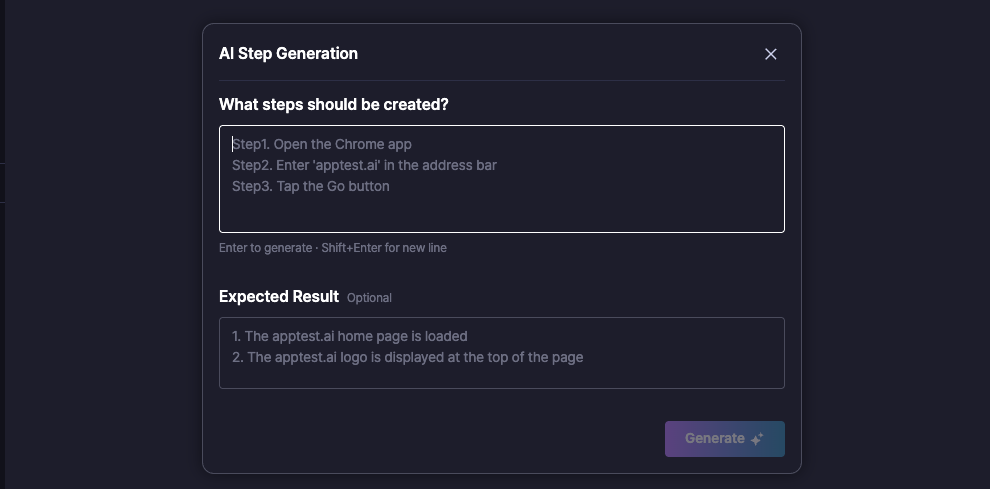
Building a scenario one Step at a time can take time. Describe what you want to do, and AI Step Generation analyzes the screen and creates the required Steps for you.
- Enter the task you want to perform in the AI Step Generation panel.
- Add an expected result to include a Validation action in the generated flow.
- Review and edit the generated Steps just like any other Steps in your scenario.
5. New action: Validation #
Check screen conditions using natural language.
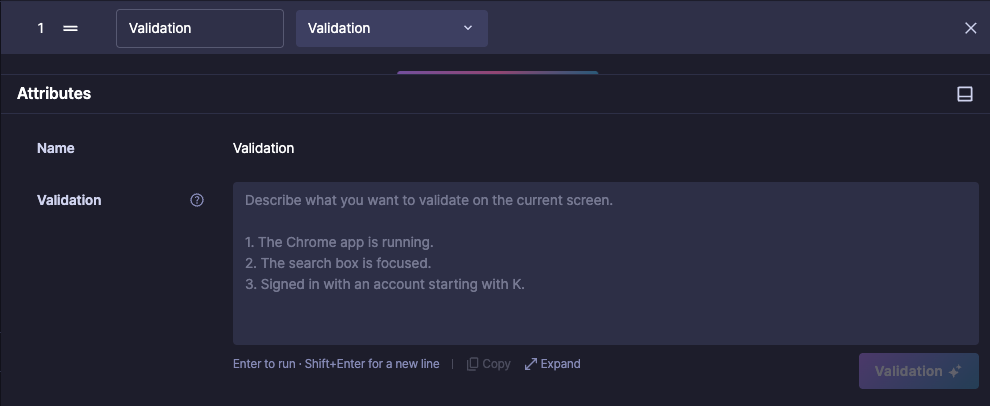
Verifying a screen used to require manually configured assertions. The Validation action lets you describe the expected conditions in plain language and uses AI to evaluate the current screen.
- Add Validation through AI Step Generation, or add it manually from the action list.
- Enter the conditions you want to verify in the Attributes panel.
- Select Validation to view the PASS, FAIL result and the reasoning behind it.
6. Improved gesture display #
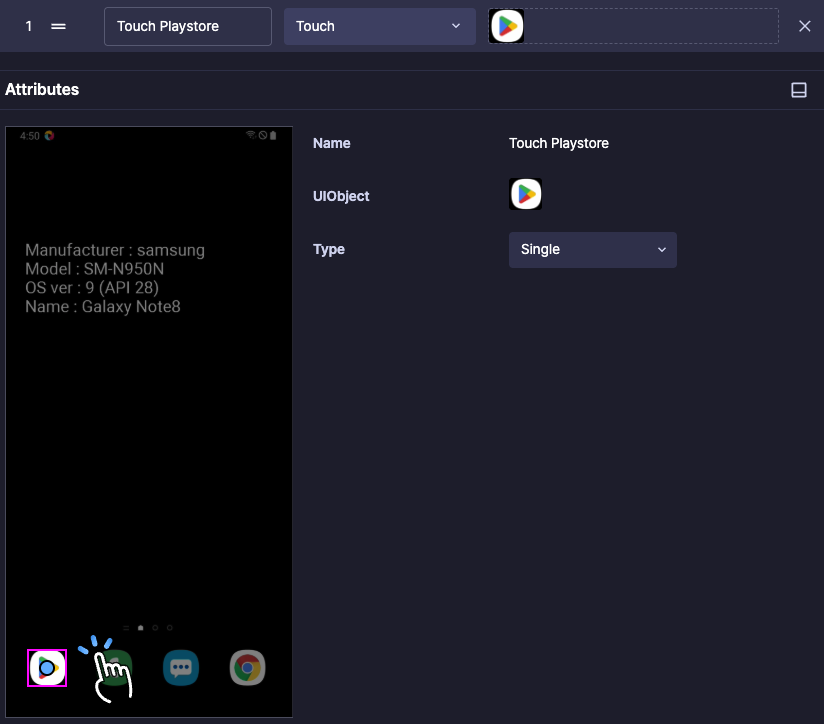
See your gestures at a glance.
Touch, Swipe, Scroll, Drag, and Pinch are now drawn directly on screen — start point, end point, and the path in between. The new rendering is cleaner and looks identical in the Attributes panel and in Step Result, so what you designed is exactly what you’ll see in your results
7. Improved Step Result matching diagnostics #
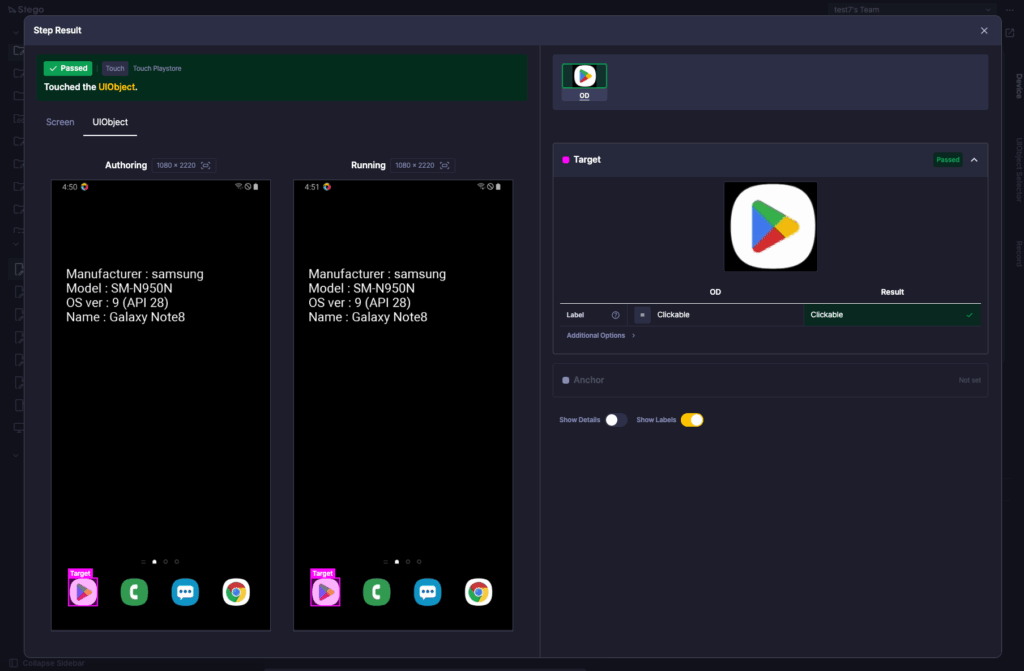
See exactly why a step failed.
When a step fails to match its element, the diagnostics are now right on the result screen: Target and Anchor are listed separately, with the conditions you specified compared side by side against the values actually measured. No more guessing.
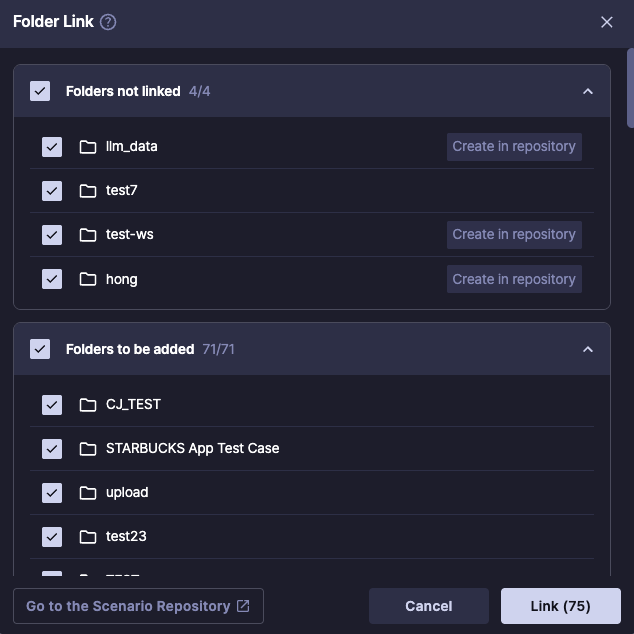
8. New Folder Link modal (Stego Web only) #
Link all your folders in one place.
The new Folder Link modal shows your Stego folders and scenario repository folders side by side, so you can review and link them all on one screen. Open it from the sync icon in the Folder panel header.
Only the links are created — scenarios are still uploaded and downloaded from each folder separately.