
A scenario is a file that defines test actions in order. Before creating a scenario, create a folder to organize scenarios by test purpose.
By default, a new scenario created in the Scenario panel is a Scenario.
Create a Common Scenario when you need a shared flow that can be reused across multiple scenarios.
Before you start #
You need a folder to save the scenario. If you do not have a folder yet, create one first.
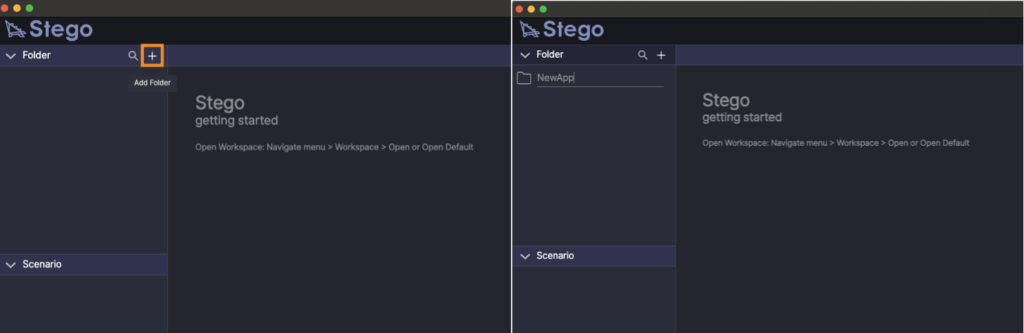
Create a Folder #
- In the Folder panel, click +.
- Enter a folder name.
- Create the folder.
Create a Scenario #
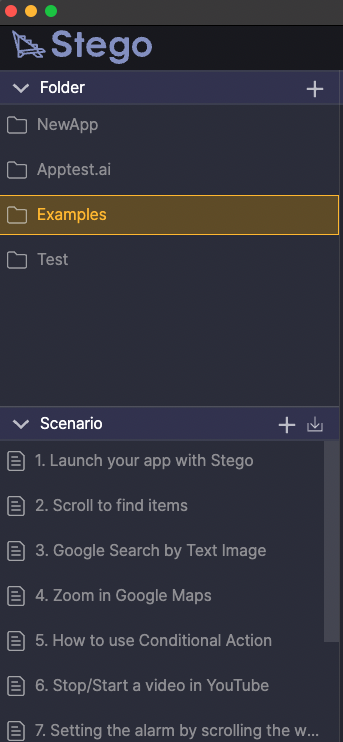
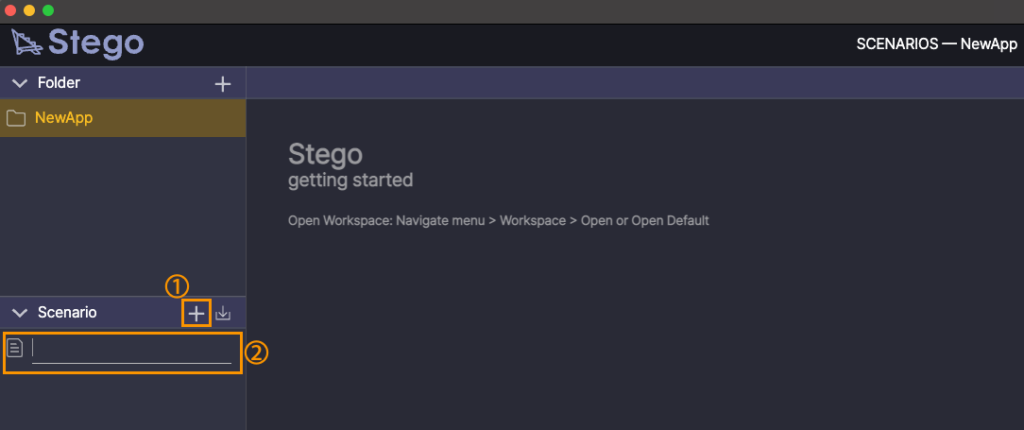
- In the Folder panel, select the folder where you want to save the scenario.
- In the Scenario panel, click +.
- Select a platform.
- Enter a scenario name.
- Create the scenario.
Check the result #
The new scenario appears in the Scenario panel of the selected folder.
Select a Platform #
When creating a scenario, select the platform that matches the test target.
| Platform | When to select |
|---|---|
| Mobile | Select this for Android or iOS mobile apps and mobile web tests. |
| Desktop | Select this for websites or applications running in a Windows PC environment. |
If the platform selection option does not appear, the scenario is created as a Mobile scenario by default.
When to Use a Common Scenario #
A Common Scenario is a shared flow used repeatedly across multiple scenarios.
For example, create a Common Scenario for repeated actions such as login, permission approval, or moving to an initial screen.
After creating a Common Scenario, you can call it from other scenarios and reuse the same flow.
For details, see [Using Common Scenarios].
Next Step #
After creating a scenario, add steps to define the test flow. For details, see Writing Scenarios.