
Run a scenario on a connected device, then check the result in the Output panel.
Run all steps from start to finish, or run only a selected step or section.
For a detailed result, open Step Result and compare the authoring screen with the screen captured during execution.
Before you start #
- Open the scenario in the Scenario Editor panel.
- Make sure the device for the scenario is connected.
- To connect a mobile device, see Connecting a Mobile Device.
- To connect a Windows PC or Local Desktop, see Connecting a Windows PC.
- When running a Desktop Scenario on Local Desktop, Stego minimizes the browser window during execution. When the run finishes, the browser window is restored.
Running Scenarios #
Run All Steps #
Run all steps when you need to check the full scenario flow from the first step to the last step.

Use the run button at the top of the Scenario Editor panel to run the full scenario.
- Click the run button (▶) at the top of the Scenario Editor panel.
- To use the keyboard shortcut, press
Ctrl+Don Windows orCmd+Don macOS.
After the run starts, the Output panel lists step execution records.
Run Specific Sections #
Run a specific step or section when you need to recheck a failed step or quickly verify a changed section.
In the Scenario Editor panel, select the reference step, right-click it, and choose a run option. To run multiple steps, select the steps first, then use Play Selected.
| Option | Run range | Use when |
|---|---|---|
| Play Only | Runs only the selected step, then stops. If the step contains child steps, such as a Block or Common Scenario, Stego also runs the child steps. | Check one specific step. |
| Play Until the End | Runs from the selected step to the last step of the scenario. | Recheck the remaining flow from the middle of the scenario. |
| Play Until This Step | Runs from the first step to the selected step. | Check the flow before a specific step. |
| Play Selected | Runs the selected steps. | Check multiple selected steps. |
Stop Running #
To stop a running scenario, click the Stop button (■) at the top of the Scenario Editor panel.

Use the Stop button at the top of the Scenario Editor panel while a scenario is running.
Checking Results in the Output Panel #
After you run a scenario, the Output panel lists execution records by step.
Use it to monitor progress during execution, then select failed or important steps to open detailed results.
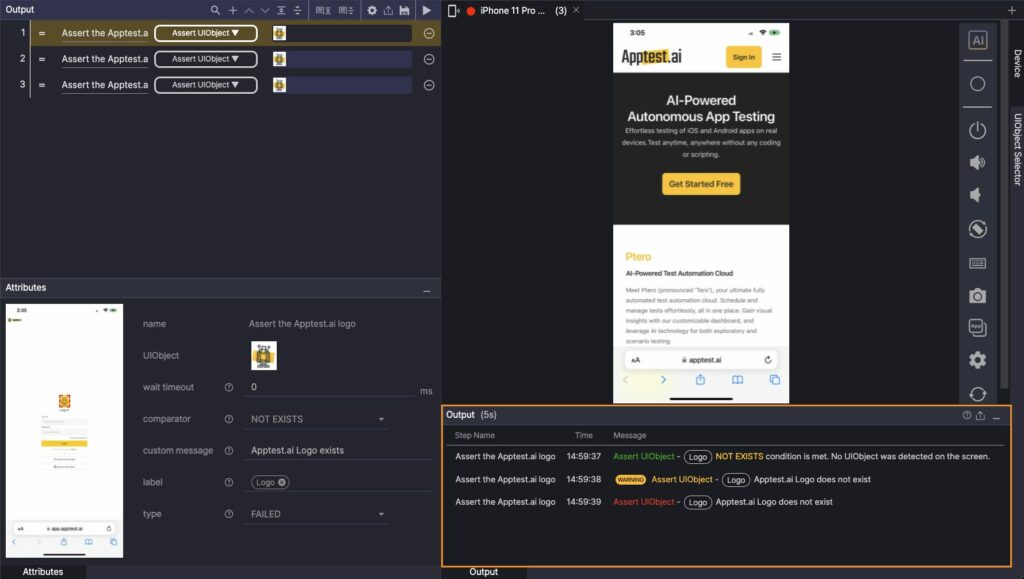
The Output panel shows the step name, execution time, and run message.
- Step Name: Name of the step
- Time: Step execution time
- Message: Run message for the step
- Assertion actions are color-coded based on the run result.
When you hover over a step in the Output panel, the same step is highlighted in the Scenario Editor panel.
Use this to find where a result appears in the scenario.
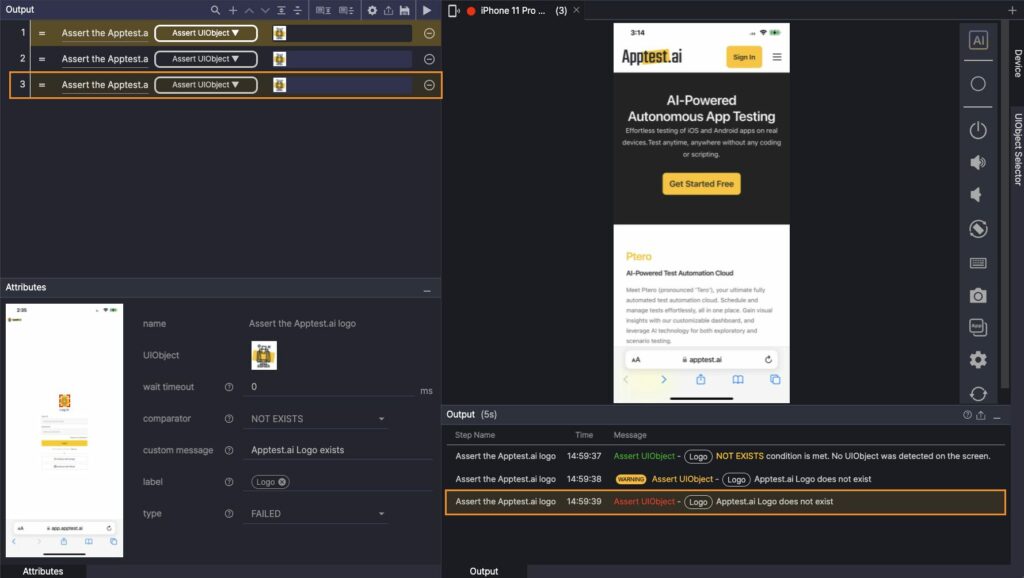
The Output panel and Scenario Editor panel show the same step, so you can locate the execution point.
Checking Step Result #
Click a step in the Output panel to open Step Result.
Step Result compares the screen configured during scenario authoring with the screen captured during execution.
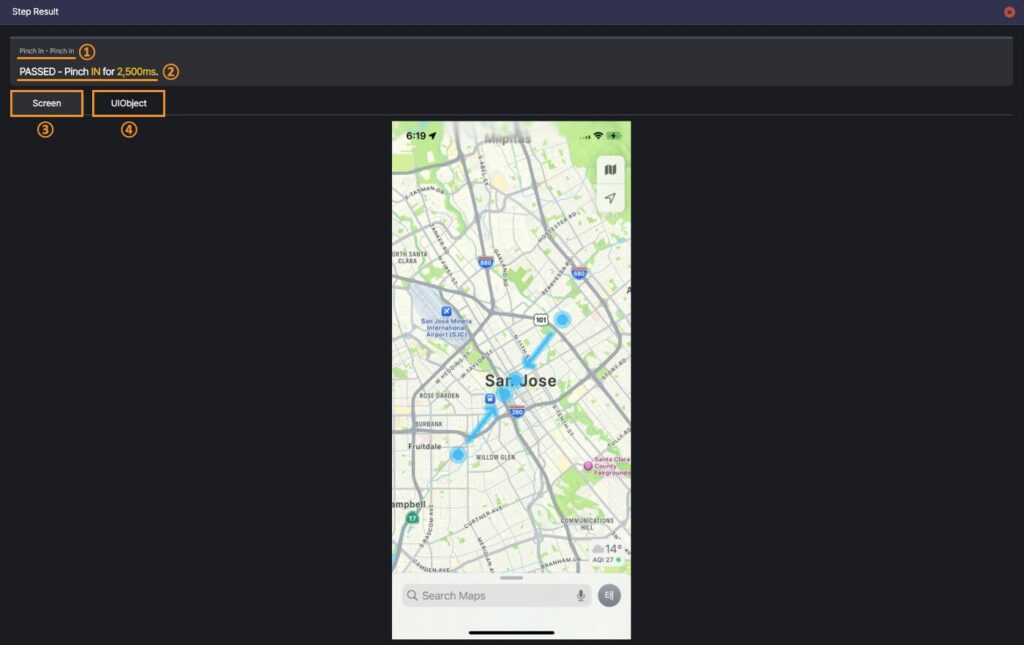
Step Result shows step information, the run result message, the execution screen, and UIObject comparison results.
- Step Information: Displays the executed action and step name
- Run Result Message: Shows the result message
- If a Label or Custom Message is set, it appears in the run result message area.
- Screen: Displays the device screen captured during execution
- Click the screenshot to view it in full screen.
- UIObject: Compares the configured UIObject with the one detected at runtime
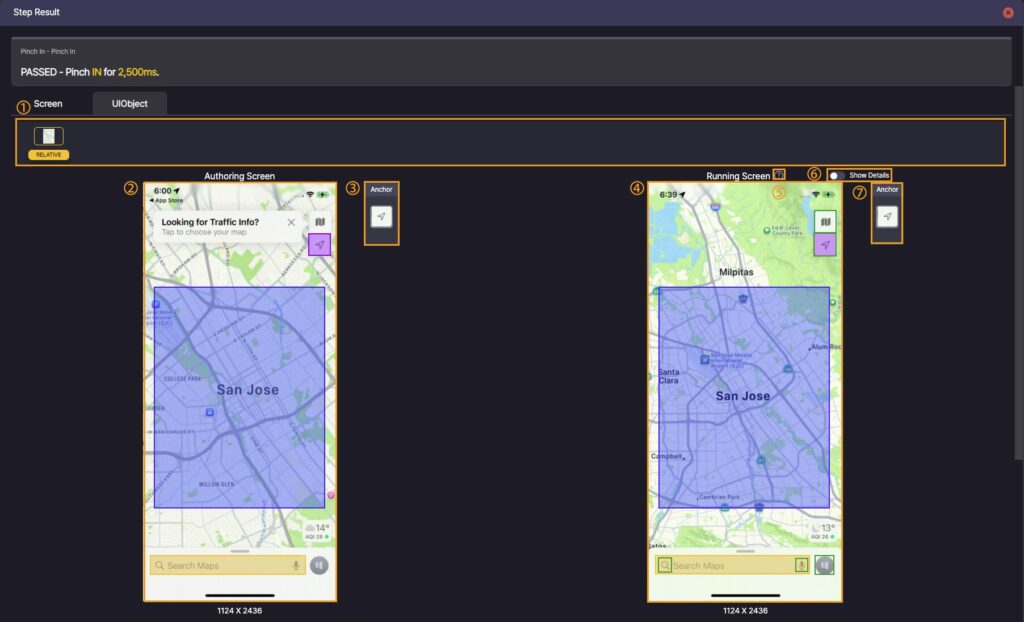
The UIObject comparison area shows authoring information and run information side by side.
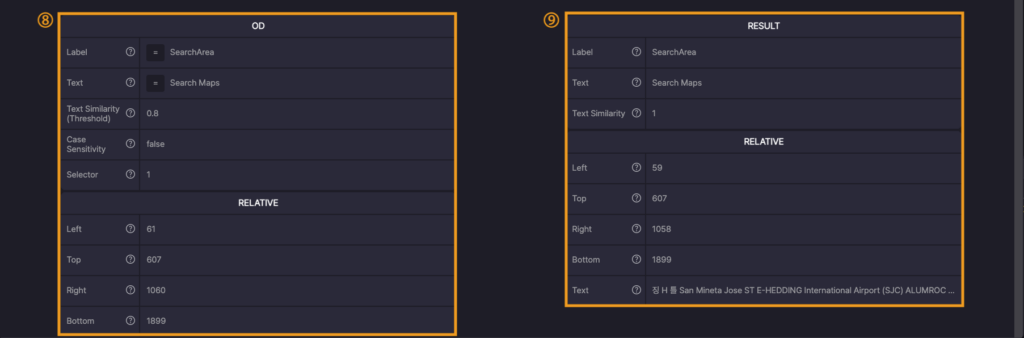
Authoring information
- ① UIObject Field: UIObject configured in the step
- ② Authoring Screen: Screen image and resolution at the time of step creation
- ③ Anchor: Anchor set in the UIObject
- Click the Anchor icon to view its attributes
- ⑧ UIObject Attributes (Authoring Screen): Attributes of the configured UIObject
Run information
- ④ Running Screen: Screen image and resolution captured during execution
- ⑤ Info Icon: Hover to view the meaning of UIObject colors
- ⑥ Show Details: Displays UIObject color meanings on the Running Screen
- ⑦ Anchor: Anchor detected during execution
- Click the Anchor icon to view its attributes
- ⑨ Running Screen UIObject Attributes: Attributes of the detected UIObject
Full screen view
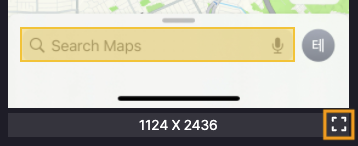
Click the resolution value below a screenshot to enlarge the image to full screen.
Check the result #
- The Output panel lists the records for the steps that ran.
- Click a step result to open Step Result and compare the execution screen with UIObject details.
- For failed or important steps, use the Output panel to locate the step, then update it in the Scenario Editor panel.