
v1.29.0 (2026-10-23) #
This release gives you more room to work with your scenarios.
The new version history feature lets you review uploaded versions, compare changes, and restore an earlier version.
We’ve also added editing locks to Stego Web to help prevent conflicting edits across users, tabs, and devices.
Unless noted otherwise, all changes apply to both Stego Web and Stego for Desktop.
1. Improved UI sizing and layout #
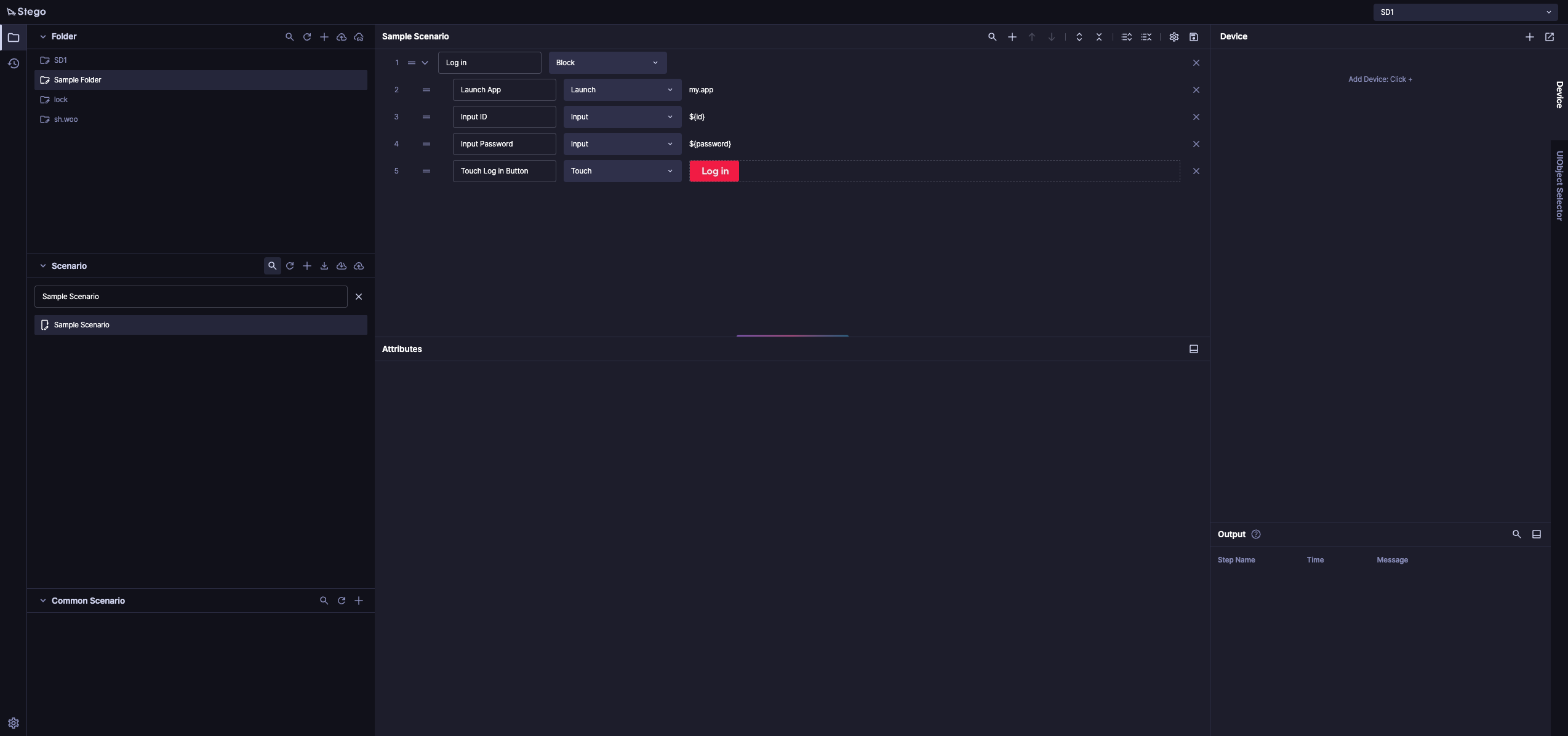
See more of your scenario at once.
We’ve adjusted text and icon sizes, list row heights, and panel spacing to make better use of screen space.
You can now open the main menu using the gear icon in the bottom-left corner.
2. New feature: Scenario version history #
Keep track of changes and return to an earlier version when you need to.
Review the versions you’ve uploaded to the scenario repository,
compare them with your current working copy, or restore an earlier version.
Browse uploaded versions #
- Open the version panel to browse the scenario’s upload history.
Select a version to inspect its steps and attributes in read-only mode. - Edit a version’s tag and description, or download its scenario file.
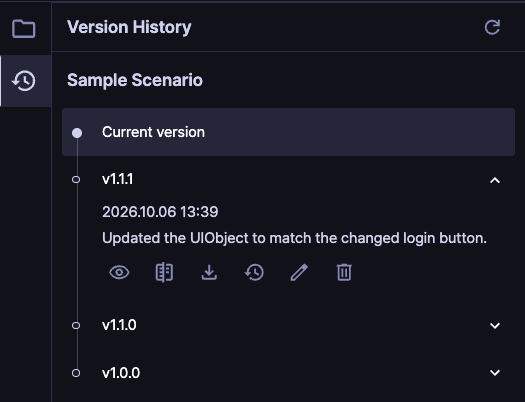
Expand a version to see its description and action icons. The first six icons below appear from left to right in the expanded entry.
| Icon | Action | What it does |
|---|---|---|
 | View | Open the selected version in read-only mode to inspect its steps and attributes. Select Current version to return to your working copy. |
 | Compare versions | Compare the selected version with your current working copy, including unsaved changes. |
 | Download | Download the selected version as a scenario file. |
 | Restore | Replace the current scenario with the selected version after confirmation. |
 | Edit | Update the version’s tag and description. |
 | Delete version | Permanently remove the selected version from the upload history after confirmation. |
 | Refresh | Reload the upload history when a newly uploaded version is not yet visible. |
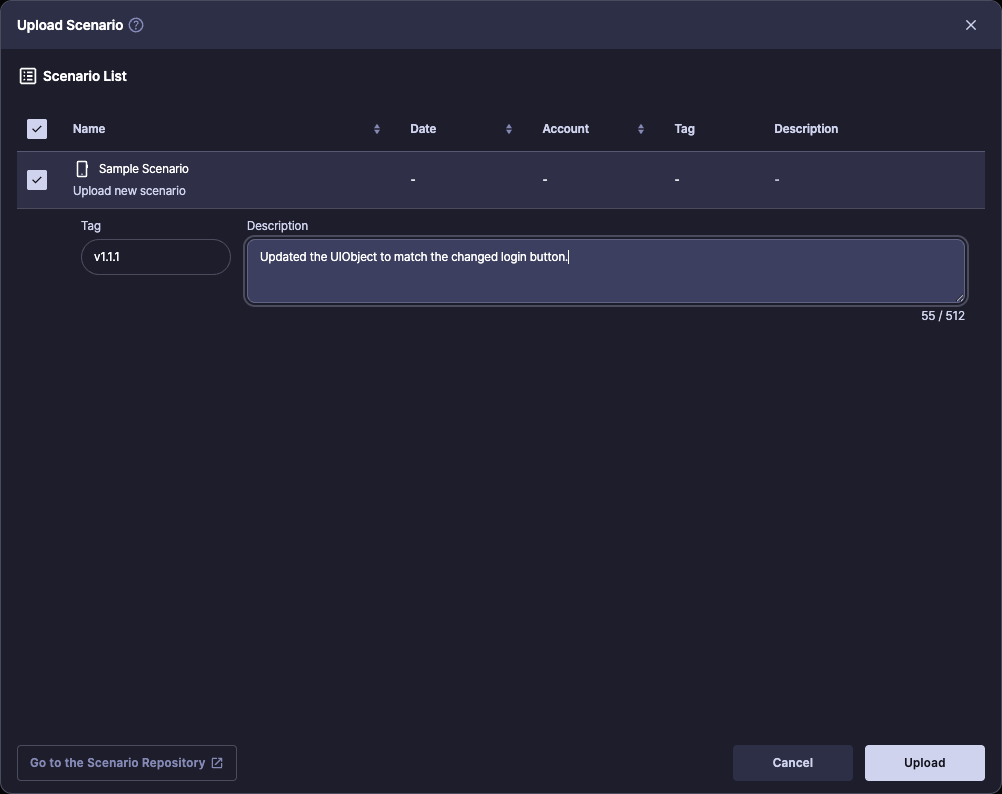
When you upload a scenario,
you can enter a version label, such as v1.1.1, in the Tag field and a brief summary of changes in the Description field.
Both fields are optional.
Compare changes and restore a version #
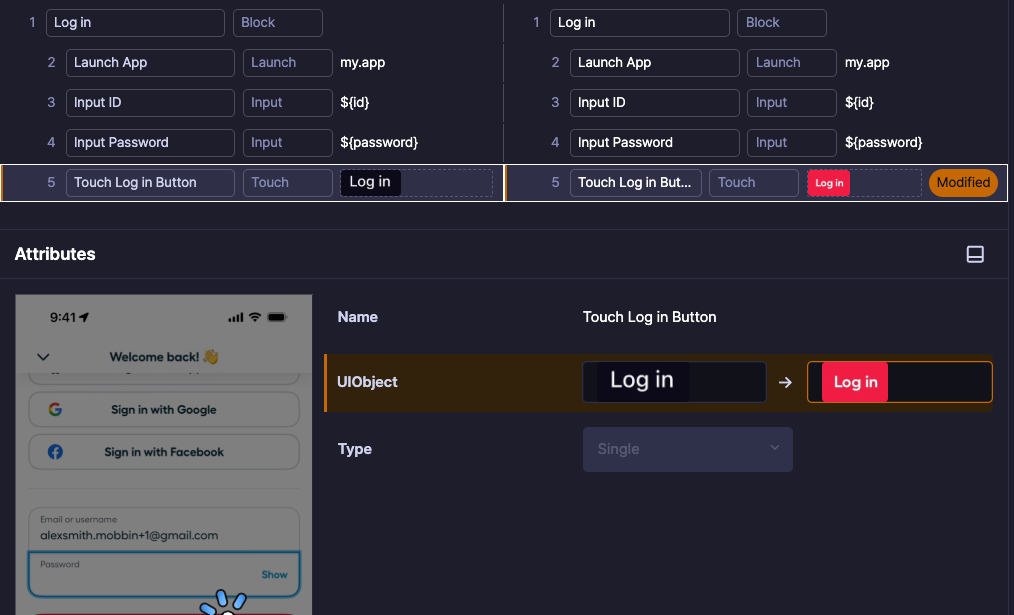
- Compare a selected version with your current working copy side by side.
See which steps were added, removed, modified, or moved. - Restore a selected version to replace the current scenario with its contents.
Restoring a version discards unsaved changes.
If related scenarios will also be replaced, Stego lists them for you to review before you confirm.
3. New feature: Scenario editing locks (Stego Web only) #
Avoid editing conflicts when working on the same scenario.
A scenario can be edited in only one tab at a time, across all users and devices.
Read-only access while someone else is editing #
You can still open a scenario in read-only mode while someone else is editing.
Inspect its steps and attributes, search or copy steps, or run the saved scenario.
You’ll need editing access to add or delete steps, change names, actions, or attributes, and save your changes.
 This lock icon in the scenario list indicates that another user is editing the scenario.
Hover over the icon to see who is editing. Their account details are partially hidden for privacy.
Continue editing in another tab or on another device #
If you’re already editing a scenario in another tab or on another device using the same account,
you can take over editing in your current tab.
Until then, the current tab is read-only: you can inspect, search or copy steps, and run the saved scenario.
 This highlighted lock icon indicates that you’re editing the scenario in another tab or on another device.
Hover over the icon to see the editing status.
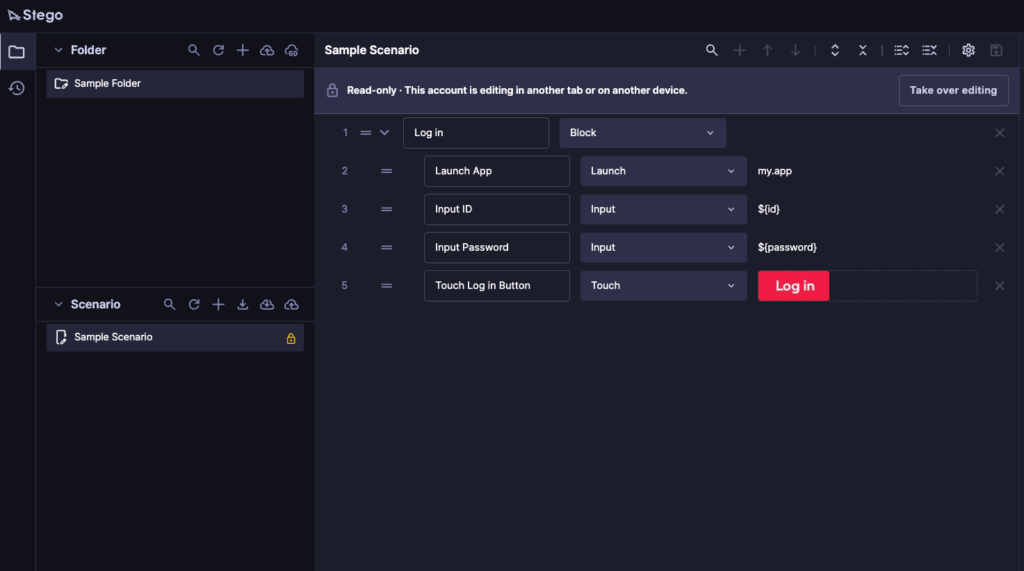
Select Take over editing and confirm to continue in this tab. The tab you were previously editing in becomes read-only.
After a period of inactivity #
If you’ve been inactive in the Stego tab for 10 minutes, Stego asks whether you want to keep editing.
If you release the lock or do not respond within 1 minute, the tab becomes read-only. Select Resume editing when you are ready to continue.